

Office templates are one of Microsoft’s most underused productivity shortcuts — a ready-made, professionally formatted document you open, fill in, and send. Whether you need a polished resume, a monthly budget tracker, a project Gantt chart, or a branded invoice, there is almost certainly a free template built right into Word, Excel, or PowerPoint waiting for you. This guide shows you exactly where to find them, how to customise them to match your needs, and how to save your own reusable templates so every document you create starts one step ahead.
What Are Office Templates and Why Use Them?

An Office template is a pre-built file — saved as .dotx in Word, .xltx in Excel, or .potx in PowerPoint — that stores layout, styles, colours, fonts, and placeholder content. When you open one, it creates a fresh copy rather than editing the master file, so the original is always intact for next time.
The practical benefits are hard to argue with:
-
Speed: skip blank-page paralysis — structure and design are already done.
-
Consistency: every invoice or report your team produces follows the same format.
-
Professional results: Microsoft’s built-in designs are crafted by trained designers, not your average home user.
-
Reduced errors: formula-driven Excel templates (budgets, timesheets) include pre-built calculations you just fill in.
Microsoft hosts thousands of free templates across Word, Excel, and PowerPoint — and many are available even without a Microsoft 365 subscription.
How to Browse Free Templates Inside Word
Word templates cover the widest range of document types. To access them directly inside the app:
-
Open Microsoft Word and click File → New.
-
You’ll see a search bar at the top and a row of suggested categories: Business, Personal, Industry, Design Sets, Events, Education, Letters.
-
Type a keyword — resume, cover letter, invoice, newsletter — and press Enter.
-
Click any thumbnail to preview it, then click Create to open a fresh, editable copy.
For an even larger library, visit Microsoft’s official free templates page, which lists thousands of Word templates covering everything from calendars and brochures to legal agreements and greeting cards. The downloaded file opens directly in Word.
Most Popular Word Template Categories
-
Resumes and CV formats (chronological, functional, modern)
-
Cover letters matched to resume designs
-
Business letters and memos
-
Invoices and receipts
-
Meeting agendas and minutes
-
Reports and proposals
-
Flyers, brochures, and newsletters
Finding Excel Templates for Budgets, Invoices, and Project Plans

Excel templates shine when data and calculations are involved. The same File → New workflow applies, but the template library skews heavily toward numbers-driven documents. Search for:
-
Budget templates: monthly household budget, annual business budget, event budget tracker.
-
Invoice templates: service invoice, sales invoice, billing statement — all with auto-summing totals.
-
Project planning: Gantt chart templates, project tracker, milestone planner.
-
Timesheets: weekly timesheet, employee hours log.
-
Financial trackers: expense report, loan amortisation, profit and loss statement.
Microsoft’s Excel Gantt chart template, for instance, covers project timelines across weeks and months with conditional formatting already applied — a feature set that would take a competent user an hour or more to build from scratch.
A Note on Excel Template Formulas
Before you rely on an Excel template for real financial data, spot-check the built-in formulas. Templates are generally accurate, but if you’ve added or removed rows, a SUM range may no longer capture all your entries. Always verify totals match your expectations before sending or filing a document.
PowerPoint Templates: Presentations Worth Presenting
PowerPoint’s built-in template gallery focuses on design themes and presentation structures. Access it via File → New, then search by topic or browse by colour scheme and style. Key categories include:
-
Business pitch decks and sales presentations
-
Educational and training slide sets
-
Status reports and project updates
-
Photo albums and event slideshows
-
Infographic-style data presentations
Every PowerPoint template includes Slide Master formatting, which means font choices, colour palettes, and logo placement carry through every slide automatically. Change the Slide Master once and every slide updates — a crucial time-saver for longer decks.
How to Customise Office Templates Effectively
Finding a free template is only step one. Customisation is what turns a generic document into something that actually represents you or your business. Here’s a practical workflow that works across all three apps:
1. Replace Placeholder Text First
Most templates use placeholder text in square brackets — [Your Name], [Company Address], [Project Title]. Use Ctrl + H (Find & Replace) to swap these out in bulk rather than hunting through the document manually.
2. Adjust Colours to Match Your Brand
In Word and PowerPoint, go to Design → Colors and select a theme colour set, or click Customize Colors to enter your brand’s hex codes. This updates every accent colour in the document simultaneously.
3. Swap the Fonts
Head to Design → Fonts (Word/PowerPoint) to set a heading and body font pair that aligns with your existing materials. In Excel, use the Home tab to change cell fonts and apply them consistently across header rows.
4. Add Your Logo
Insert your logo via Insert → Pictures. Position it in the header or designated branding area, then use the Wrap Text → Behind Text or In Front of Text option to lock it in place. In PowerPoint, add your logo to the Slide Master so it appears on every slide without manual repeating.
5. Lock Sections You Don’t Want Changed
For shared templates, use Word’s Developer → Restrict Editing to protect sections with formulas or fixed legal text, allowing collaborators to fill in only the fields they need to edit.
How to Save a Custom Office Template
Once you’ve customised a document to your liking, save it as a reusable template so you never start from scratch again:
-
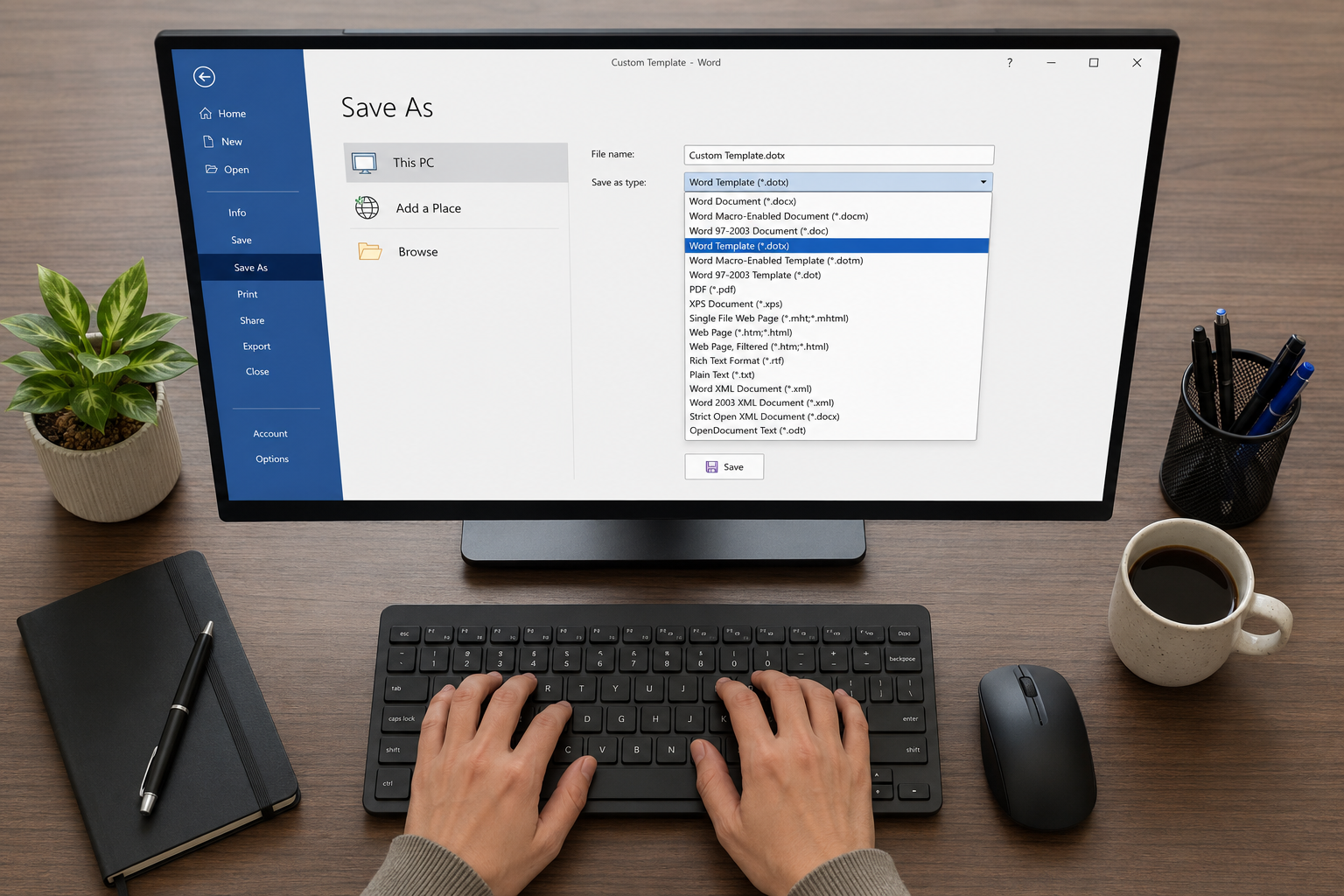
Click File → Save As.
-
In the Save as type dropdown, choose Word Template (.dotx), Excel Template (.xltx), or PowerPoint Template (.potx).
-
Word and Excel will automatically suggest the
Custom Office Templatesfolder in your Documents — save it there so the template appears under File → New → Personal every time. -
Give it a clear, descriptive name: 2025 Client Invoice v1, Monthly Budget Tracker, and so on.
Your personal templates library will appear under the Personal tab whenever you open the new document dialog — no hunting through folders required.
Building Your Own Template From Scratch
Sometimes no pre-built option quite fits. Building a custom template from a blank file gives you complete control over structure, branding, and logic. Follow this process in Word as an example:
-
Start from File → New → Blank Document.
-
Set your page margins, paper size, and orientation under Layout.
-
Define your heading and body styles in the Styles pane — this is what makes a professionally structured document versus one that just looks formatted.
-
Add placeholder text using Developer → Content Controls (text boxes, date pickers, dropdown lists) so future users know exactly what to fill in.
-
Insert your logo, fixed legal text, or footer content that should never change.
-
Save as
.dotxas described above.
In Excel, a from-scratch template usually starts with a structured table, named ranges for dynamic formulas, and data validation on key cells (e.g., drop-downs for department names or currency codes). For PowerPoint, set everything up in the Slide Master (View → Slide Master) before creating individual slides.
Getting the Most From Your Office Version
The template library you have access to depends partly on your version of Office. Microsoft 365 subscribers get the fullest range, including AI-powered template suggestions via Microsoft Copilot. However, Office 2021 and Office 2024 perpetual licences still include a substantial built-in template gallery — and full access to templates on the Microsoft Support portal is free for everyone, regardless of subscription status.
If you’re on an older Office build or considering an upgrade, ShopKeyOnline offers genuine, affordable perpetual licences. Microsoft Office 2021 Pro Plus is available from just €28.95 with instant email delivery, while Microsoft Office 2024 Pro Plus starts from €24.50 — both giving you permanent access to Word, Excel, and PowerPoint along with every template discussed in this guide.
Every licence comes with a 100% money-back guarantee if activation fails and our support team can’t resolve it, plus 24/7 support via live chat, email, and WhatsApp.
Tips for Organising and Sharing Your Template Library
Once you’ve built a handful of useful Word templates, Excel templates, and PowerPoint decks, keeping them accessible becomes its own task. A few practical habits help:
-
Use a shared network folder or OneDrive: store your organisation’s master templates in a shared location so the whole team always uses the current version.
-
Version-control your templates: include a version number and date in the filename so outdated copies don’t get used by mistake.
-
Protect master files: mark your master template as read-only at the folder level and keep a working copy separate.
-
Review templates annually: branding evolves, legal clauses change, and pricing structures shift. A quick yearly audit keeps your templates accurate.
-
Document what each template is for: add a hidden instruction page or a comment at the top of Excel sheets explaining what the file covers and which cells to edit.
FAQ: Free Office Templates
Are Microsoft’s built-in Office templates really free?
Yes. The templates available via File → New in Word, Excel, and PowerPoint are included at no extra cost with any paid Office or Microsoft 365 licence. The templates on Microsoft’s official support portal and the create.microsoft.com site are also free to download, even for users with basic Microsoft accounts.
Do I need a Microsoft 365 subscription to access free templates?
No. Perpetual licence holders — including Office 2021 and Office 2024 — have full access to the built-in template gallery and the Microsoft template website. Microsoft 365 subscribers do get additional AI-assisted template features via Copilot, but the core library is available to all paid users.
Can I use Office templates for commercial purposes?
Microsoft’s standard template licence permits using the finished document commercially — you can send a template-based invoice to clients, use a template-based resume to apply for jobs, or distribute a template-based brochure to customers. You may not resell the template itself as a standalone product without modification.
How do I share a custom template with my team?
Save the template file (.dotx, .xltx, or .potx) to a shared OneDrive or SharePoint folder. Team members can open it from there, and it will create a new working copy each time — the original master stays intact. For Office 365 business accounts, IT admins can also deploy templates organisation-wide via the Microsoft 365 admin centre.
Why doesn’t my downloaded template look the same as the preview?
This usually happens when the template uses fonts not installed on your system. Open the template, go to Design → Fonts, and switch to a font pair you have locally. The layout will reflow correctly once a matching font is selected. Downloading and installing the original fonts from Google Fonts or Adobe Fonts also resolves this without changing the design.
