
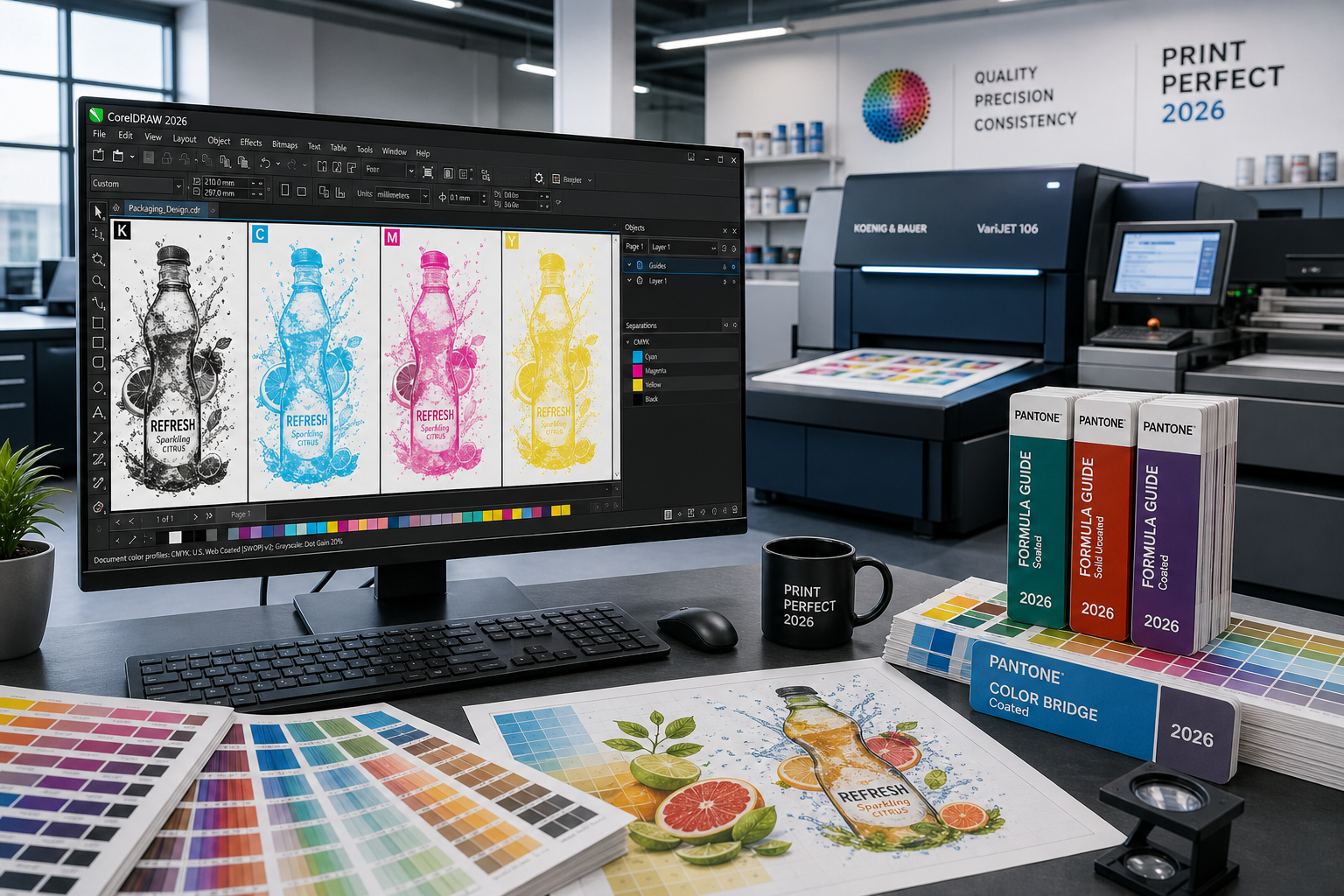
When it comes to a CorelDRAW print production workflow, few design platforms come close — and in 2026, that lead is wider than ever. While web-first competitors chase browser-based convenience, CorelDRAW remains the tool serious print shops and prepress operators reach for when a job has to be right first time. From offset lithography to wide-format signage, its dedicated colour management engine, industry-standard PDF export, and deep prepress toolkit make it the professional’s choice for print.
Why CorelDRAW Print Production Dominates
CorelDRAW has been purpose-built for print since its debut in 1989 — over 35 years of continuous refinement targeted squarely at commercial printing requirements. Web-first tools like Canva or Figma are excellent for screen design, but they bolt on CMYK support as an afterthought. CorelDRAW builds the entire application around it. The result is a print production workflow that starts correctly at the colour model level and stays consistent all the way through to press-ready output.
-
Native CMYK colour space throughout the design canvas
-
Full ICC profile support for monitors, printers, and RIP devices
-
Spot colour management with Pantone, HKS, and TOYO libraries built in
-
PDF/X output presets aligned to ISO printing standards
-
Comprehensive imposition and print-merge tools for variable data printing
CorelDRAW CMYK Colour Management: Getting It Right Before the Press
CorelDRAW CMYK design starts at document creation — not as a last-minute conversion. When you open a new document destined for print, you choose CMYK as the primary colour mode from the outset, which means every object, gradient, and imported raster image is evaluated in a CMYK context as you work.
ICC Profile Integration
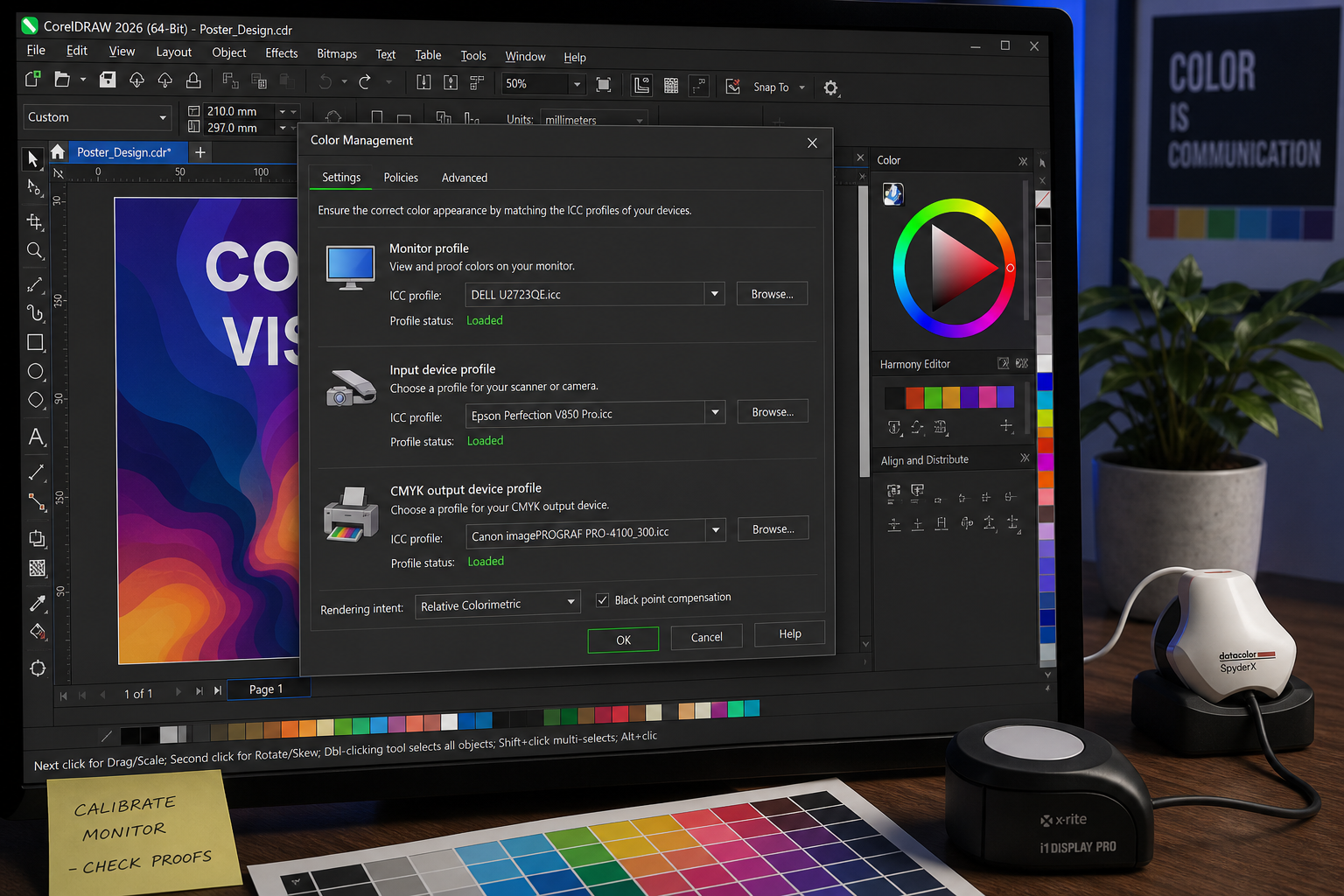
CorelDRAW’s colour management system is built around ICC-compliant profiles, as documented in Corel’s own help centre. You can assign separate profiles for your monitor, input scanner, and target output device — meaning what you see on screen is a faithful soft-proof of what will come off the press. Profiles for common print standards such as FOGRA51 (coated European offset), SWOP (North American web offset), and GRACoL are importable directly into the application-wide or document-level colour settings.
Soft-Proofing on the Design Canvas
The built-in Proof Colors mode applies a real-time gamut simulation, letting designers check whether rich blacks will flatten to muddy browns or whether vibrant blues will shift towards purple under a CMYK press gamut. Out-of-gamut warnings highlight any object whose colour cannot be accurately reproduced — a feature largely absent from web-first tools. This alone saves print shops hours of back-and-forth between designer and operator.
CorelDRAW Prepress Tools Built Into Every Licence
A solid CorelDRAW prepress workflow relies on the suite’s dedicated prepress panel, which is available without purchasing costly add-ons. Professional prepress checks include bleed management, registration marks, colour bar insertion, crop marks, and density limits — all configurable from a single print dialog.
Bleed and Trim Control
CorelDRAW lets you set document-level bleed margins (typically 3 mm for offset print) and displays them visually on the canvas. When exporting to PDF, the bleed values are embedded in the file metadata and visible in any prepress PDF viewer. This eliminates the common error of bleed being specified in the design but not written into the exported file — a mistake that routinely triggers rejections from trade print services.
Colour Separation and Overprint Preview
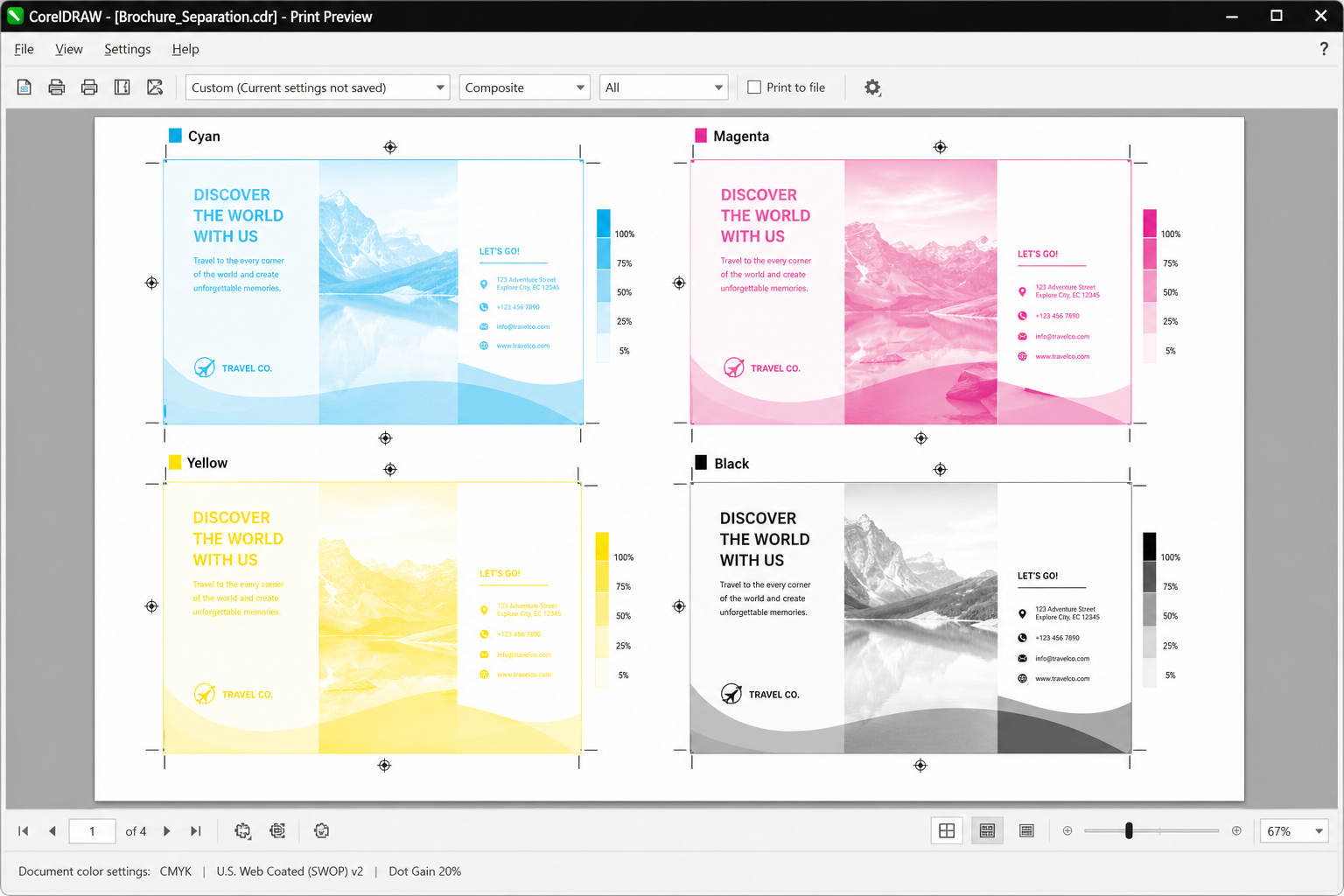
The Print Preview window provides a per-plate colour separation view, letting operators inspect each CMYK channel and every spot-colour plate before a job ever reaches the RIP. Overprint settings — critical for trapping black text over colour backgrounds to avoid white halos from misregistration — can be previewed here in real time. This is the kind of press-side thinking that distinguishes CorelDRAW from general-purpose design tools.
Trap and Spread Controls
For jobs where tight registration matters, CorelDRAW offers configurable trap widths so that adjacent colours slightly overlap, preventing white gaps if plates shift fractionally during a press run. Spreads and chokes can be set on individual objects or applied globally — a workflow efficiency that professional print shops genuinely value.
PDF/X Export in a CorelDRAW Print Production Workflow
The industry’s preferred file exchange format for print is PDF/X, and CorelDRAW’s PDF export engine speaks it fluently. Designers can export to PDF/X-1a, PDF/X-3, or PDF/X-4 directly from File > Publish to PDF, selecting from named presets that lock down colour handling, font embedding, and transparency flattening according to each standard’s requirements.
-
PDF/X-1a — CMYK and spot only, all fonts embedded, no transparency; universally accepted by offset printers
-
PDF/X-3 — allows ICC-managed colour spaces; used widely in European print markets under FOGRA standards
-
PDF/X-4 — supports live transparency and layers; preferred by RIP-based digital print workflows
Each preset can be customised and saved, so a studio working with multiple print vendors can maintain a named preset for each one — a practical timesaver that keeps job specs consistent across hundreds of files.
Variable Data and Print Merge for High-Volume Jobs
One of the most underrated features in the CorelDRAW print production toolkit is Print Merge, which links a design template to an external data source (CSV, ODBC, or Excel) to produce personalised print assets at scale. Wedding invitation suites, direct-mail postcards, numbered event tickets, and serialised asset labels can all be generated in a single automated pass — with each unique data record flowing into designated text or barcode fields on the master layout.
This capability alone positions CorelDRAW as a genuine variable data printing (VDP) platform without requiring specialist third-party software. For print shops handling short-to-medium runs of personalised work, it is a significant competitive advantage that tightens the print production workflow considerably.
CorelDRAW Prepress Workflow for Wide-Format and Signage
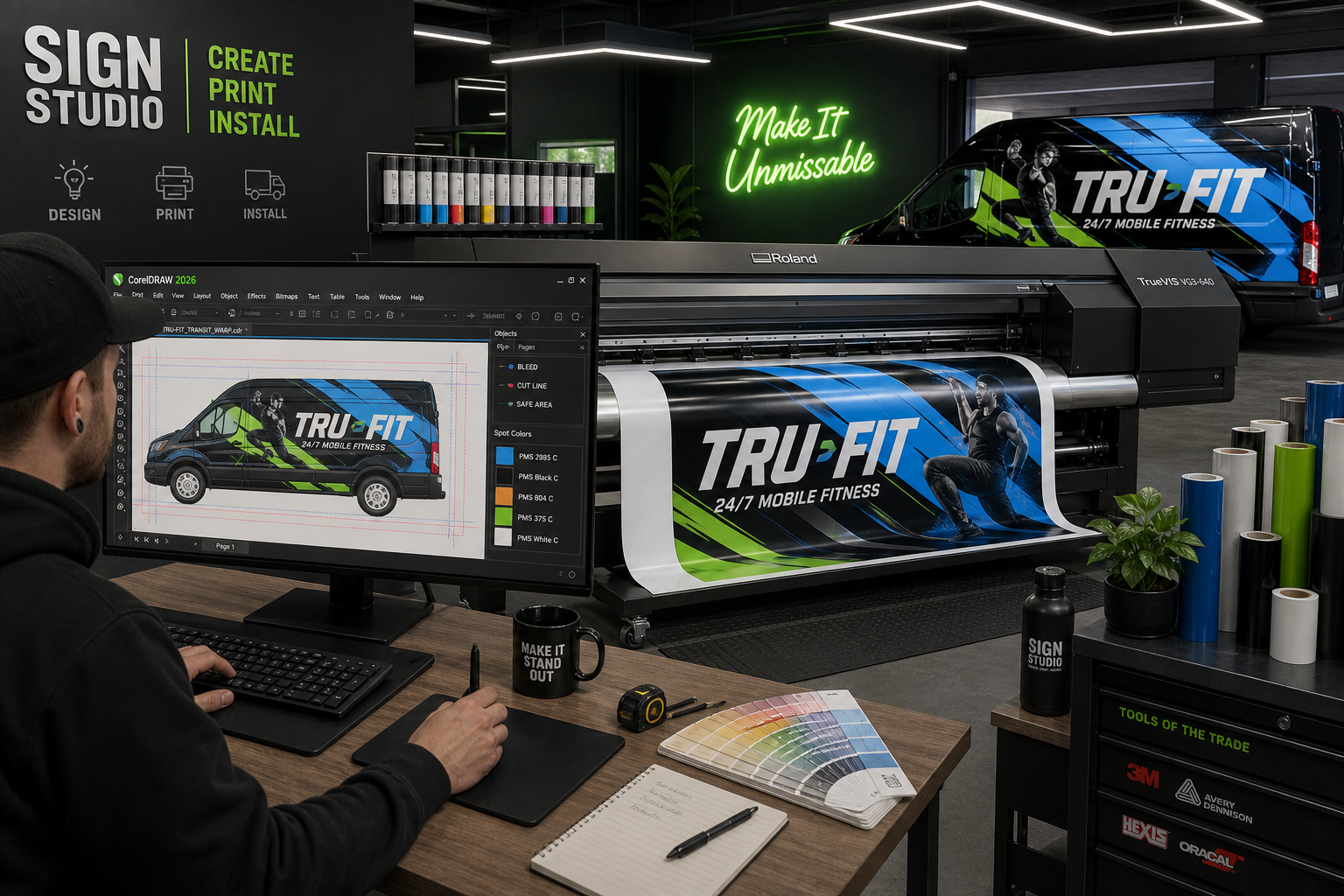
Print production is not limited to A4 brochures and business cards. CorelDRAW supports document sizes up to 1,800 × 1,800 metres — more than enough for vehicle wraps, billboard art, and architectural graphics. Vector artwork scales without quality loss to any dimension, and the suite integrates directly with Roland, Mimaki, and Mutoh wide-format RIP software via named printer drivers and ICC profiles specifically built for aqueous and solvent ink sets.
For signage studios, the ability to design at a 1:10 scale and output at full bleed size — while trusting that colours will be consistently reproduced — is exactly what a robust CorelDRAW prepress workflow delivers day after day.
How Print Shops Integrate CorelDRAW Print Production Into Their Pipelines
Real-world integration goes beyond a single workstation. Many commercial print shops use CorelDRAW on dedicated prepress stations while the broader team may use other tools for concept development. The bridge between them is almost always a PDF/X file — produced in CorelDRAW, checked in a preflight tool such as Acrobat Pro or Pitstop, then passed to the RIP.
Preflight Automation
CorelDRAW’s built-in Preflight tool scans the active document for common press-rejection causes: RGB objects, missing fonts, resolution below 300 DPI, missing bleed, and overprint conflicts. Warnings are listed with clickable navigation so an operator can jump directly to the offending object and fix it without hunting through a complex layout.
Corel PHOTO-PAINT and CorelDRAW CMYK Design Integration
The Graphics Suite licence bundles Corel PHOTO-PAINT alongside CorelDRAW, enabling a seamless CorelDRAW CMYK design pipeline for jobs that combine vector artwork with photographic imagery. Images can be edited in PHOTO-PAINT in the same CMYK colour space, then placed into CorelDRAW without colour-space conversion artefacts — a workflow consistency that reduces surprises at proof stage.
CorelDRAW Graphics Suite 2025 vs. Technical Suite 2025
For print professionals choosing a licence in 2026, understanding the difference between the Graphics Suite and the Technical Suite matters. The CorelDRAW Graphics Suite 2025 (available from €64.90) is the core creative package covering print, illustration, photo editing, and typography. The CorelDRAW Technical Suite 2025 for Windows (from €69.90) adds Corel DESIGNER for technical illustration and CAD-style drawing — ideal for manufacturers, engineers, and large-format operators who need both print-ready artwork and precise technical documentation from the same platform.
Both suites include the full CMYK colour management engine, PDF/X export, and prepress tools described in this guide. The choice between them depends on whether your workflow ever touches technical illustration or CAD file formats rather than purely creative print design.
For a broader look at the full CorelDRAW product range available at ShopKey Online, visit the CorelDRAW category page to compare versions and find the licence that fits your production requirements.
CorelDRAW vs. Web-First Competitors for Print Production
The landscape in 2026 includes capable rivals, but none that match CorelDRAW’s depth on a CorelDRAW print production brief. Here is a practical comparison:
-
Adobe Illustrator — strong vector and CMYK tools, deep industry adoption, but requires an active Creative Cloud subscription (typically €30+/month) and does not include a native PHOTO-PAINT equivalent in a single licence
-
Affinity Publisher 2 — a capable one-time-purchase alternative for layout work, with decent PDF/X export, but its colour separation and trap controls are less mature
-
Canva — excellent for social media and quick web assets, but its CMYK export remains limited, spot colour is unsupported, and its PDF output is not widely accepted by commercial offset printers
-
Figma — browser-based and team-collaboration-focused; entirely unsuited to prepress production work
CorelDRAW’s one-time lifetime licence pricing, combined with the depth of its print-specific toolset, makes it the most cost-effective professional option for studios and print shops that live in the CMYK world.
Getting Started With a Production-Ready CorelDRAW Setup
Setting up CorelDRAW correctly for print takes less than an hour but pays dividends on every job thereafter. Corel’s official tutorial Preparing documents for prepress and print is an authoritative starting point that covers document setup, colour management, and export settings in a clear, step-by-step format. Follow it once, save your preferred settings as a workspace, and your whole team works from the same consistent baseline.
Key setup steps for a production-ready environment:
-
Set the default colour mode to CMYK under Tools > Color Management > Default Settings
-
Assign the correct output ICC profile for your primary print vendor
-
Enable Proof Colors in the View menu and check your monitor profile is calibrated
-
Configure a document bleed of 3 mm (or as specified by your printer) in Document Properties
-
Save a PDF/X-1a or PDF/X-4 export preset named after your print vendor for consistent reuse
FAQ
Does CorelDRAW support spot colours for offset printing?
Yes. CorelDRAW includes built-in libraries for Pantone (including Pantone+ and Pantone Connect integration), HKS, TOYO, and DIC spot colour systems. Spot colours are handled as dedicated ink channels and appear as separate plates in the colour separation view. You can mix CMYK process inks with one or more spot colours in the same document without conversion issues.
Can CorelDRAW export PDF/X files accepted by commercial printers?
Absolutely. CorelDRAW exports to PDF/X-1a, PDF/X-3, and PDF/X-4 directly from the Publish to PDF dialog. These are the internationally recognised standards for print-safe PDF file exchange and are accepted by virtually every commercial offset and digital print provider. Presets can be saved and shared across a studio team for consistency.
What resolution should images be for a CorelDRAW print production workflow?
For offset and digital print, placed raster images should be at least 300 DPI at the size they appear in the final printed piece. CorelDRAW’s built-in Preflight tool flags any image below this threshold before export. Wide-format signage viewed from a distance can often use 100–150 DPI at final output size without visible quality loss.
Is CorelDRAW suitable for variable data printing?
Yes — the Print Merge feature links a CorelDRAW template directly to a CSV, Excel, or ODBC data source to automate personalised print runs. Each record populates text, image, or barcode fields in the template, producing a multi-page merged PDF ready for the press. It covers use cases from name-personalised mailers to serialised labels and numbered event tickets.
How does CorelDRAW handle large-format print files?
CorelDRAW supports document dimensions up to 1,800 × 1,800 metres, making it fully capable of designing vehicle wraps, banners, and billboards. Because its core artwork is vector-based, designs scale to any output size without degrading. Wide-format RIP software from major manufacturers including Roland and Mimaki supports CorelDRAW files directly via dedicated ICC profiles and printer drivers.
