
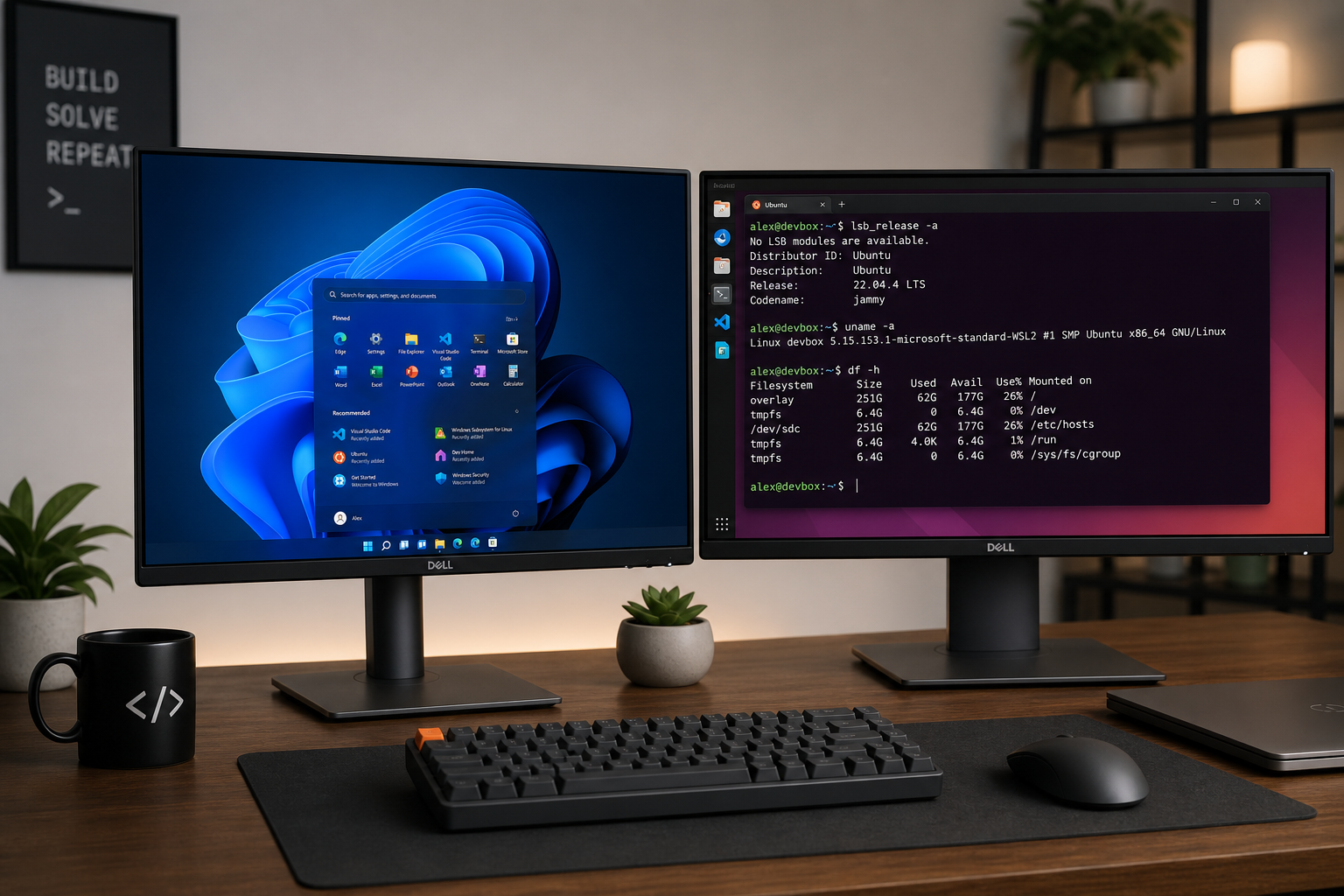
Ubuntu WSL on Windows 11 is now growing faster than native Ubuntu desktop installations — and Canonical, the company behind Ubuntu, said so themselves. According to reporting from Windows Latest, Canonical’s VP of Engineering confirmed that WSL usage figures are significantly outpacing traditional desktop installs, with projections suggesting Ubuntu on Windows could outnumber native installations before the end of 2026. For developers sitting on a Windows machine and wondering whether to dual-boot or go full Linux, this changes the conversation entirely.
Ubuntu WSL on Windows 11: What Canonical’s Data Shows
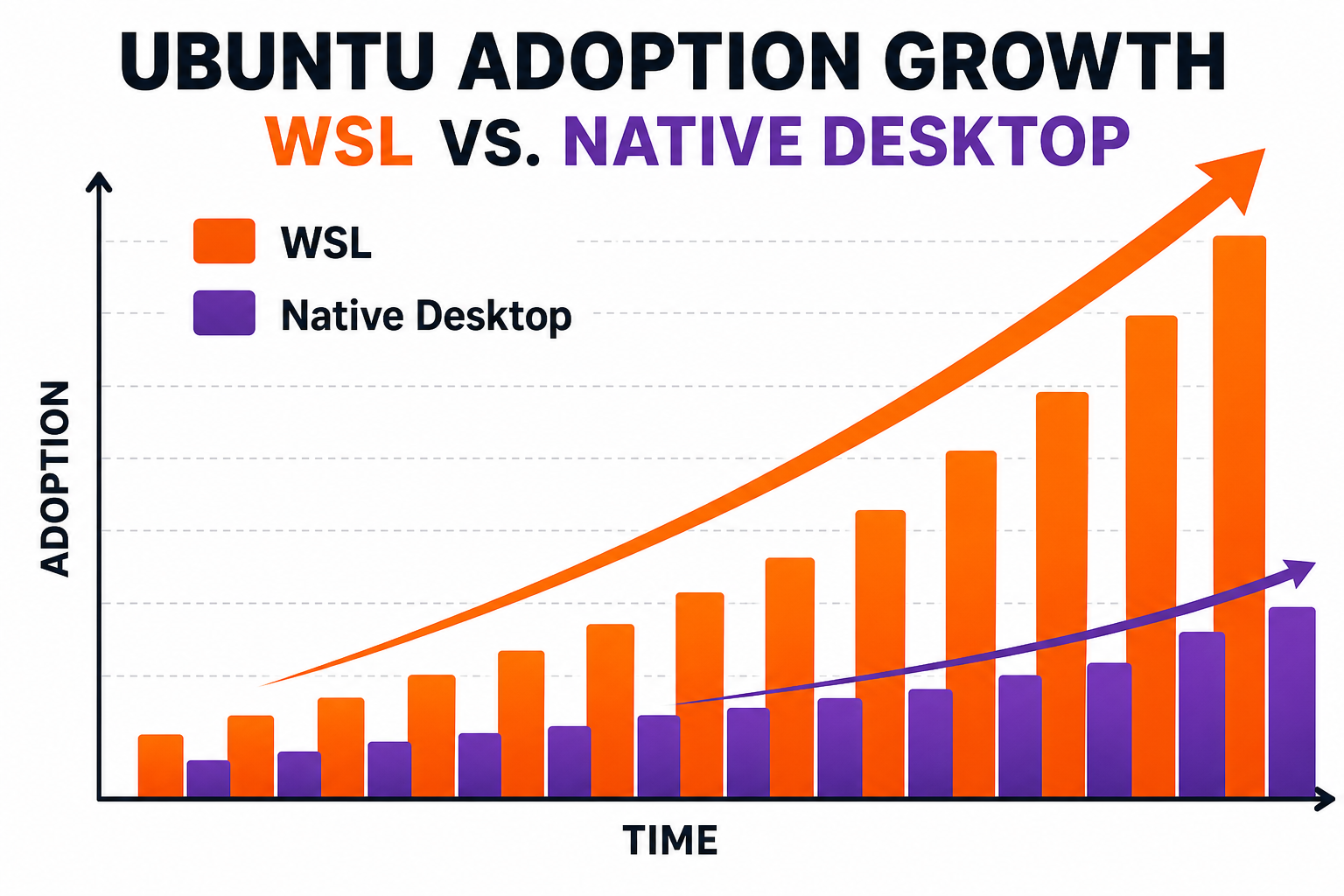
The headline figure is striking: in the past year, WSL growth numbers have been significantly higher than desktop Ubuntu growth numbers. Canonical’s VP of Engineering publicly stated they expect to see more Ubuntu WSL installs than desktop installs before 2026 is out. That’s not a niche metric — Ubuntu is one of the world’s most widely used Linux distributions, and the idea that Windows 11 is now its fastest-growing platform is a genuine shift.
This isn’t brand-new territory. Back in 2022, Canonical’s own year-in-review noted that the percentage of developers using WSL as their primary environment had grown approximately five times since 2021 — from roughly 3% to a meaningful slice of the developer population. The trend that looked promising four years ago has now snowballed into something that is reshaping how developers think about their OS choice.
What’s driving it? A combination of hardware convenience, enterprise tooling, and Microsoft’s sustained investment in making WSL genuinely useful rather than merely functional.
Why Developers Are Choosing Linux on Windows 11
The appeal of WSL Ubuntu setup comes down to a simple trade-off: you keep the Windows ecosystem — Teams, Office, your VPN client, your hardware drivers — while gaining a fully native Linux terminal environment sitting alongside it. No rebooting, no fiddling with GRUB, no dual-boot partitioning headaches.
- Native shell tools: Bash, Zsh, SSH, Git, cURL, wget, and every package in the Ubuntu apt repository work exactly as they do on a bare-metal Linux install.
- Docker integration: Docker Desktop on Windows 11 uses WSL 2 as its backend engine, giving Linux-native container performance without a separate Linux VM.
- VS Code Remote — WSL: Visual Studio Code connects directly into your WSL environment, so you edit files in the Linux filesystem with full IntelliSense and extension support.
- GPU pass-through: WSL 2 supports CUDA and DirectML, making it genuinely useful for machine-learning workloads that previously demanded a dedicated Linux rig.
- Enterprise manageability: Canonical’s Ubuntu Pro for WSL extends security patching and compliance tooling into the WSL layer, something enterprise IT teams can actually manage at scale.
For freelancers and agency developers, this means one machine handles client meetings, invoicing, and production-grade development without compromise. For enterprise teams, it means onboarding a developer onto a Windows fleet no longer forces a choice between productivity software and a Linux dev environment.
Windows Subsystem for Linux: How It Has Matured
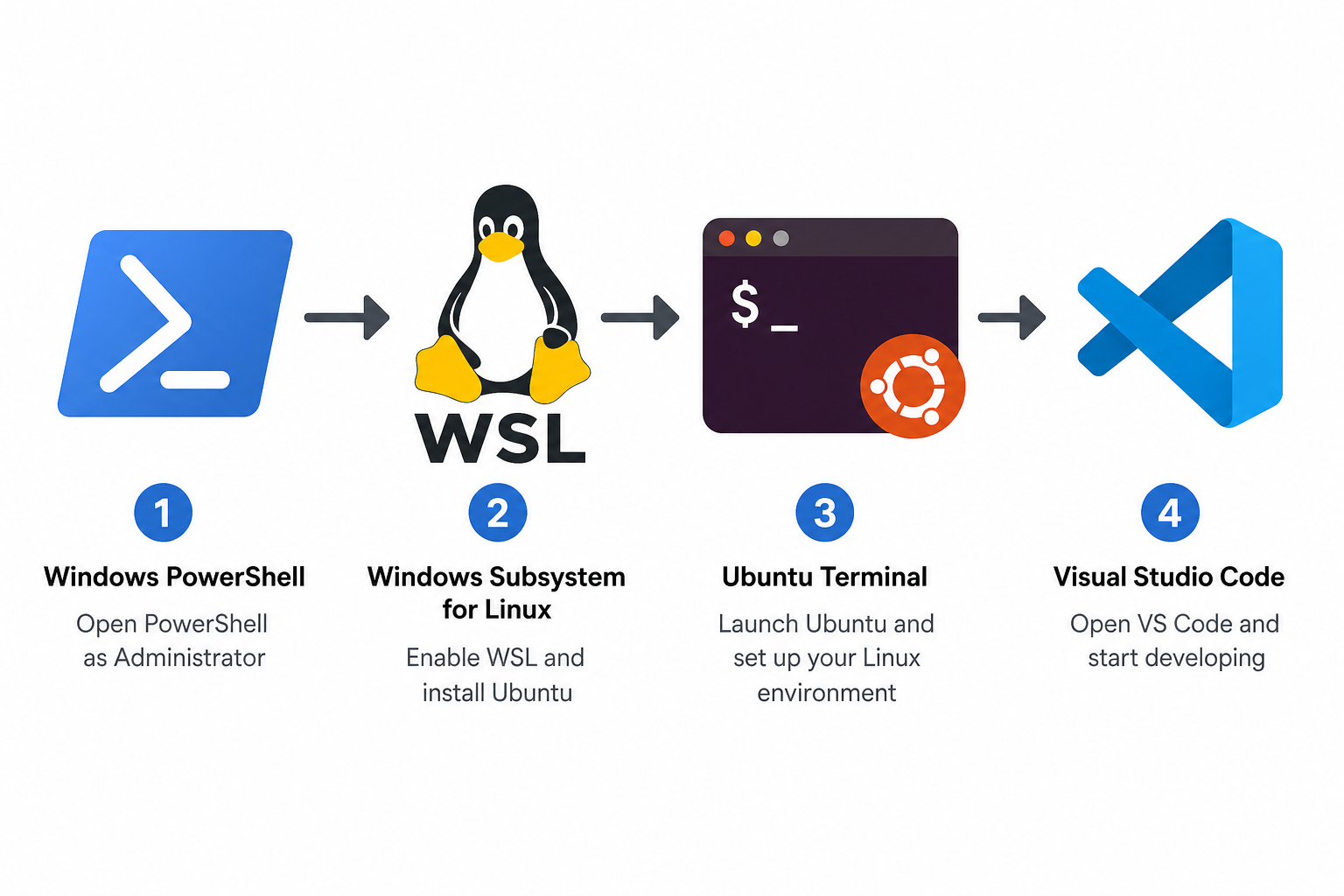
WSL 1, released in 2016, was a compatibility layer — clever, but not truly native. WSL 2, which ships by default in Windows 11, runs a real Linux kernel in a lightweight Hyper-V virtual machine. The difference in practice is substantial: file I/O in the Linux filesystem is dramatically faster, system calls that WSL 1 couldn’t handle work correctly, and tools like inotify (critical for file watchers in Node.js and webpack) function as expected.
Windows 11 also introduced WSLg — GUI application support — meaning you can run graphical Linux apps like GIMP, Inkscape, or even a full desktop environment directly in Windows without an X server. It is not something most developers need every day, but it removes one of the last genuine limitations of the subsystem.
Microsoft’s official documentation at learn.microsoft.com has also matured significantly — step-by-step guides cover everything from first install to advanced networking and systemd configuration, lowering the barrier for developers who are not yet Linux-fluent.
How to Set Up Your WSL Ubuntu Setup on Windows 11
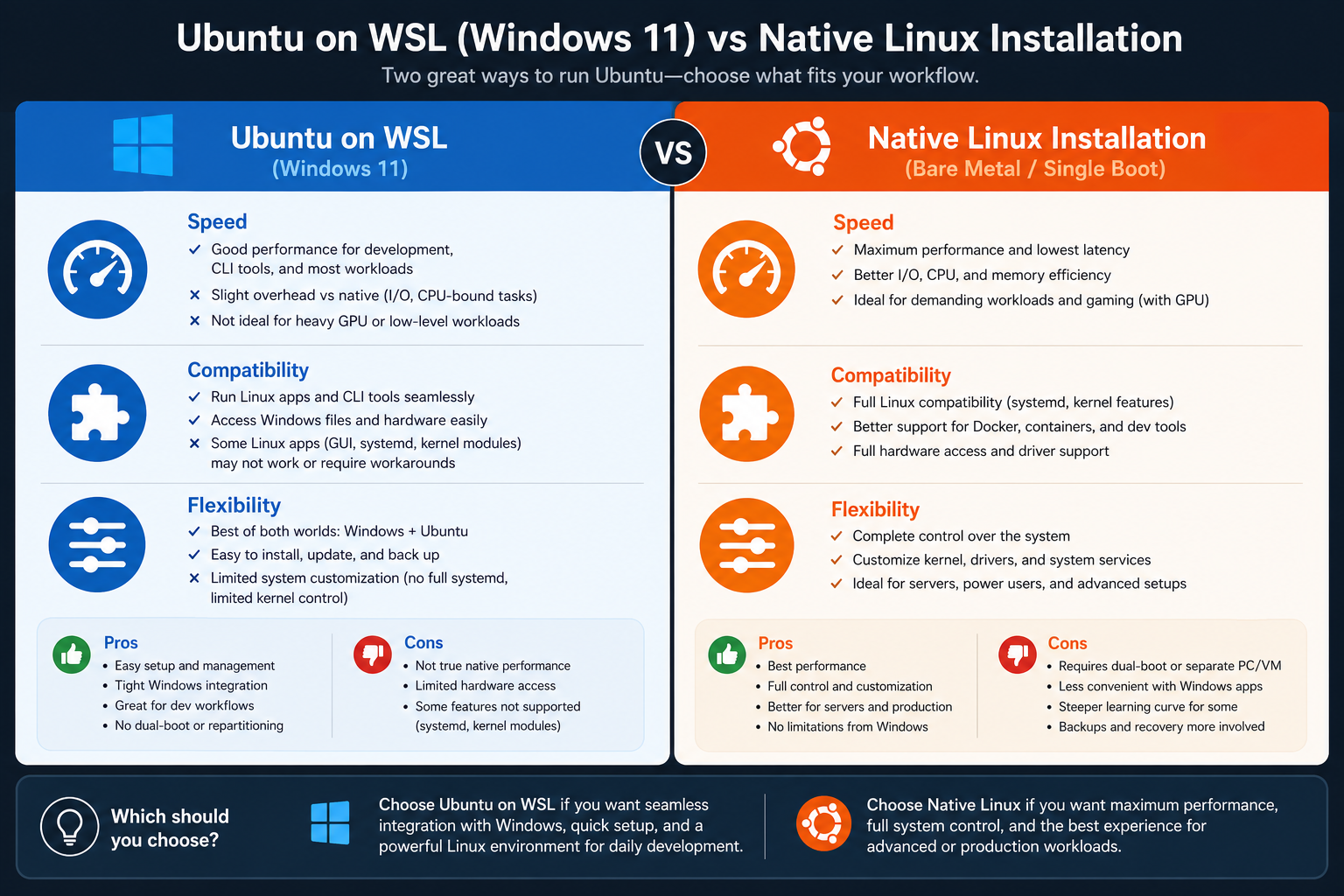
Getting a full development environment running takes under ten minutes on a properly licensed Windows 11 machine. Here is the straightforward path.
Step 1: Enable Windows Subsystem for Linux and Install Ubuntu
Open PowerShell as Administrator and run:
wsl --install
This single command enables WSL 2, downloads the Linux kernel update, and installs Ubuntu as the default distribution. Restart when prompted. On first launch, Ubuntu will ask you to set a Unix username and password — these are independent of your Windows credentials.
Step 2 — Update Your Ubuntu Environment
Once inside the Ubuntu terminal, run the standard update sequence:
sudo apt update && sudo apt upgrade -y
This brings all system packages current. You now have a fully functional Ubuntu LTS environment.
Step 3: Install Your Development Stack in Linux on Windows 11
From here, install whatever your stack requires. Common starting points:
- Node.js: Use
nvm(Node Version Manager) for clean version management. - Python: Python 3 ships with Ubuntu; add pip and virtualenv for isolated environments.
- Git: Pre-installed. Configure with
git config --globalfor your name and email. - Docker: Install Docker Desktop for Windows and enable WSL 2 integration in its settings — your Ubuntu distro will share the Docker daemon.
- VS Code: Install on Windows, open a folder inside WSL, and the Remote — WSL extension handles the rest automatically.
Step 4: Configure Windows Terminal for Ubuntu WSL on Windows 11
Windows Terminal (pre-installed on Windows 11) lets you set Ubuntu as the default profile. You get tabs, split panes, and GPU-accelerated text rendering — a considerably better experience than the legacy console host. Set your Ubuntu profile as default in Settings and you are done.
Ubuntu WSL on Windows 11 vs Native Linux: Honest Trade-offs
WSL is excellent, but it is not a perfect substitute for every use case. Being honest about the trade-offs helps you make the right call.
- Filesystem performance: Accessing Windows-hosted files (the
/mnt/c/path) from inside WSL is slower than native Linux disk access. Keep project files inside the Linux filesystem (~/) and performance is on par with native. - Systemd support: WSL 2 now supports systemd on Windows 11 (enabled in
/etc/wsl.conf), but there are occasional quirks with services that assume a fully booted system. - Kernel customisation: You cannot replace the WSL kernel with a custom-compiled one as freely as you can on a bare-metal machine. This matters for embedded or kernel-development work but not for the vast majority of application developers.
- Gaming and GPU workloads: WSL 2 has CUDA support, but for GPU-intensive gaming or workloads that demand DirectX full access, native Windows or a dedicated Linux GPU rig is still the better choice.
For web development, data science, DevOps scripting, and most backend engineering, WSL on Windows 11 covers the use case fully. The niche where native Linux still wins is shrinking with every WSL update.
Getting Linux on Windows 11 Right: Your Licence Matters
None of this works without a properly activated, genuine Windows 11 installation. WSL requires Hyper-V virtualisation and a stable kernel environment — both of which depend on Windows being fully and legitimately licensed. An unactivated or cracked Windows copy can silently disable virtualisation features and leave your WSL environment unstable.
If you are upgrading a machine specifically to run Linux on Windows 11 as your primary development environment, a genuine licence is non-negotiable. Shop Key Online supplies 100% genuine activation keys with instant email delivery — usually within minutes. Our Windows 11 Pro OEM key is available from €15.95 and activates directly with Microsoft’s servers, giving you full Hyper-V and WSL 2 access from day one. If you want Office bundled in the same purchase, the Windows 11 Pro + Office 2021 bundle (from €36.90) covers both in one order. Every key comes with a 100% money-back guarantee and free lifetime activation support.
FAQ
Is WSL 2 available on Windows 11 Home, or do I need Pro?
WSL 2 is available on both Windows 11 Home and Windows 11 Pro. The wsl --install command works on either edition. Windows 11 Pro adds Hyper-V Manager and additional virtualisation controls that power users may want, but for the standard WSL Ubuntu setup the Home edition is entirely sufficient.
Does Ubuntu on WSL use the same packages as native Ubuntu?
Yes. The Ubuntu distribution in WSL uses the same apt package repositories as a native Ubuntu install. You install packages with sudo apt install exactly as you would on a bare-metal machine. The LTS release in WSL receives the same security updates and is maintained by Canonical under the same support lifecycle.
Can I run multiple Linux distributions in WSL at the same time?
Yes. WSL supports multiple distributions installed simultaneously. You can have Ubuntu 24.04, Debian, and openSUSE all installed and switch between them in Windows Terminal. Each has its own isolated filesystem and package environment. Use wsl --list --verbose to see all installed distributions and their WSL version.
Will WSL slow down my Windows 11 PC?
WSL 2 runs in a lightweight Hyper-V virtual machine that starts and stops on demand. When not in use, memory is reclaimed automatically. On a machine with 8 GB of RAM or more, most developers notice no meaningful impact on Windows performance. Microsoft added memory reclamation improvements in recent Windows 11 builds specifically to address earlier concerns about WSL 2 memory usage.
Do I need a separate Linux licence to use WSL?
No. Ubuntu on WSL is free and open source — you only need a genuine Windows 11 licence for the host operating system. There is no additional charge from Canonical for the standard Ubuntu WSL image. Enterprise users who need the extended security patching and compliance tooling can optionally subscribe to Ubuntu Pro for WSL, but it is not required for standard development use.
What happens to my WSL environment if I reinstall Windows?
By default, WSL distributions are stored on your Windows drive and will be lost in a clean reinstall. Back up your Linux environment first by exporting it: wsl --export Ubuntu ubuntu-backup.tar. After reinstalling Windows and setting up WSL again, re-import with wsl --import. This preserves your installed packages, configuration files, and project files stored in the Linux filesystem.
