
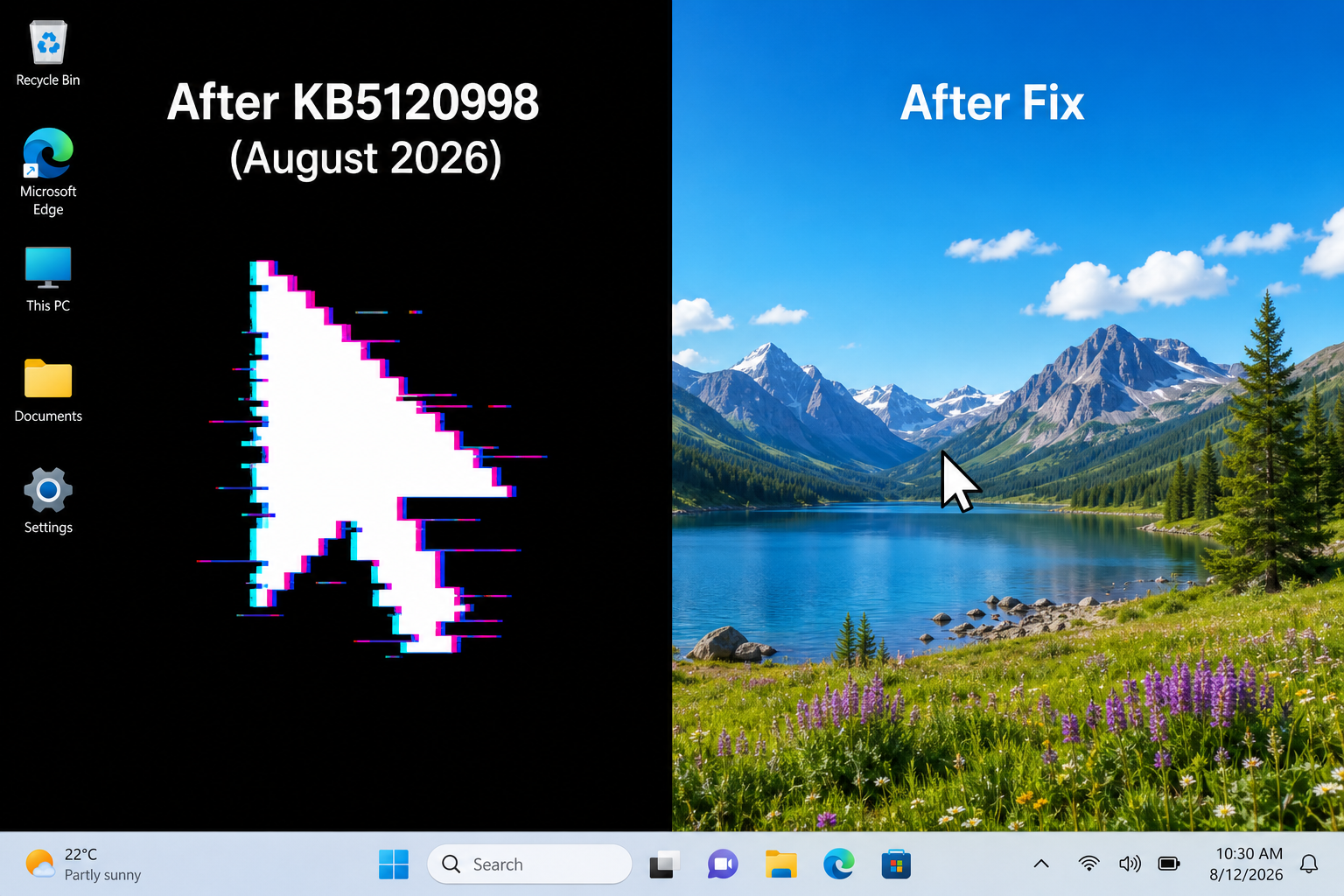
If your Windows 11 cursor wallpaper fix search landed you here, you’re not alone — Microsoft’s optional update KB5120998, released on 27 August 2026, has reset custom mouse cursors and wiped desktop wallpapers back to a plain black screen for thousands of users worldwide. The good news: the fix is straightforward, and you have two clear paths depending on how quickly Microsoft patches the issue.
What Is KB5120998 and Why Is It Breaking Things?
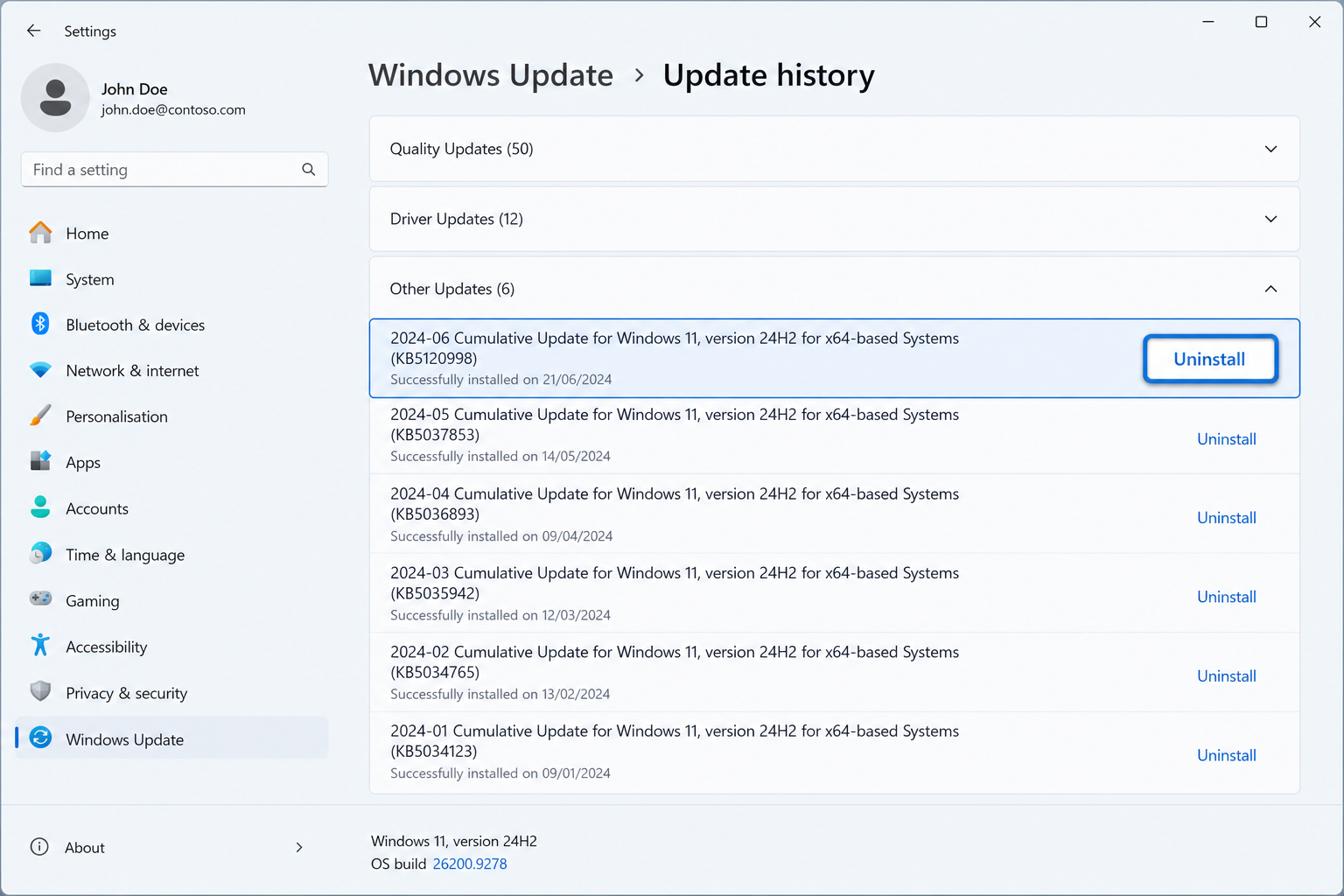
KB5120998 is an optional cumulative update for Windows 11 versions 24H2 and 25H2, targeting OS builds 26100.9278 and 26200.9278. Microsoft released it on 27 August 2026 as a non-mandatory preview update — meaning it was offered via Windows Update but not automatically pushed. Despite carrying 35 documented changes and fixes, a regression in the update’s personalisation component is overwriting stored cursor and wallpaper preferences during installation.
According to reports confirmed by Microsoft, the bug causes two distinct problems:
- Cursor reset: Custom cursor schemes — including size, colour, and pointer style — revert to default. Some users report cursors becoming unusually large or the pointer tail becoming noticeably elongated, with no way to change it back while the update is installed.
- Wallpaper wipe: Desktop wallpapers reset to a solid black background, ignoring any previously saved personalisation settings.
Microsoft has officially acknowledged the problem. The update is optional, so users who haven’t yet installed it should hold off until a corrected build is available. Those who already installed it have a reliable rollback route — detailed below.
Who Is Affected by the Cursor and Wallpaper Reset?
The KB5120998 bug affects Windows 11 users on version 24H2 or 25H2 who manually installed the optional August 2026 preview update. Users on older feature versions, or those who only receive mandatory Patch Tuesday updates, are currently unaffected. If you are running Windows 11 and your cursor or wallpaper reset without explanation after 27 August 2026, KB5120998 is almost certainly the cause.
KB5120998 Fix Option 1: Uninstall the Buggy Update
The fastest and most reliable KB5120998 fix is simply to uninstall the update. This removes the regression entirely and restores the Windows build that was working correctly before. Follow these steps:
- Open Settings (Win + I).
- Navigate to Windows Update → Update History.
- Scroll to the bottom and click Uninstall Updates.
- Find KB5120998 in the list and click Uninstall.
- Follow the on-screen prompts and restart your PC when asked.
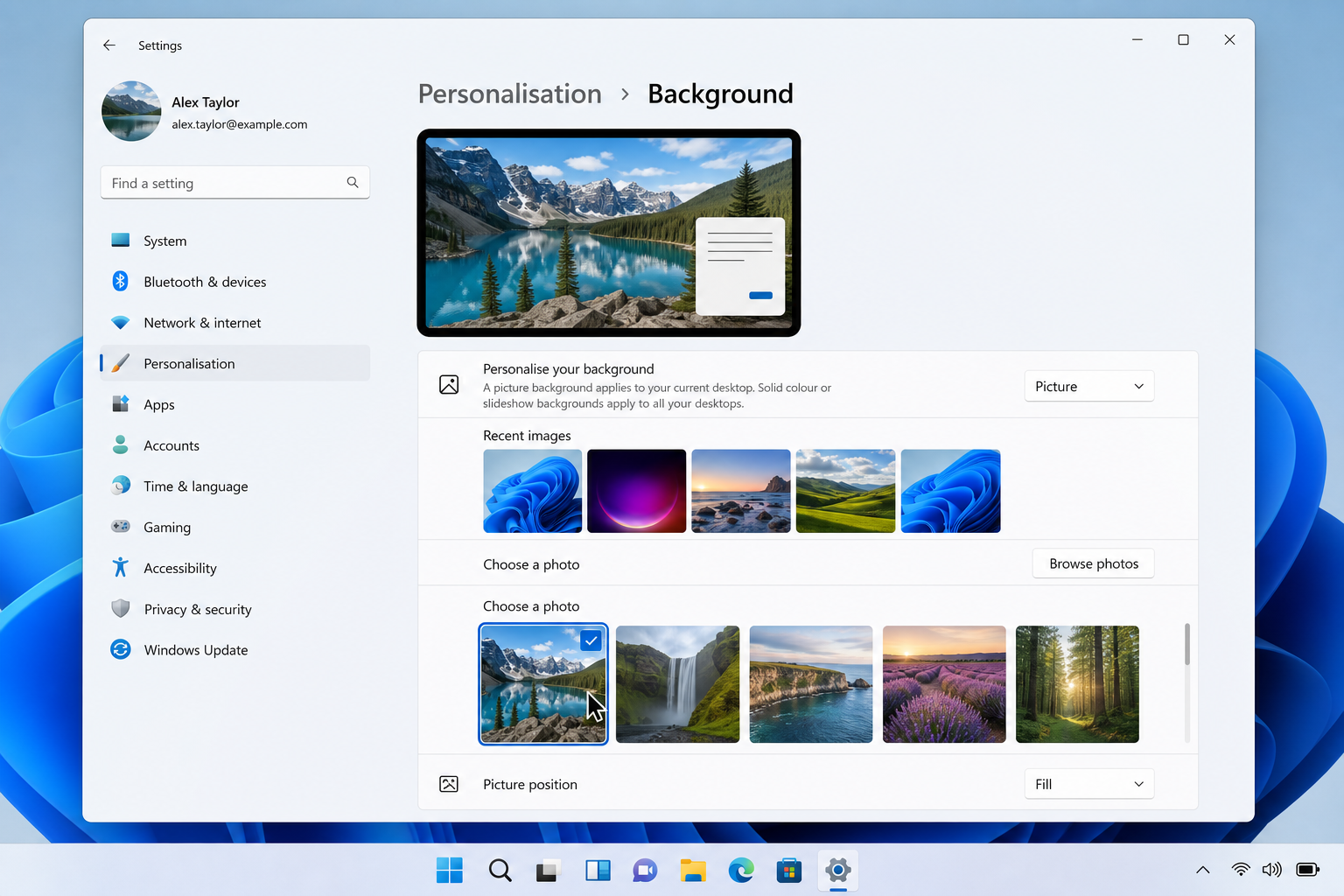
After rebooting, your cursor scheme and desktop wallpaper should both return automatically. If the wallpaper remains black, right-click the desktop, choose Personalise → Background, and reselect your preferred image.
You can verify the uninstall was successful by going back to Settings → Windows Update → Update History — KB5120998 should now appear under “Uninstalled updates” rather than “Quality updates.”
Wallpaper Reset Fix: Restoring Your Desktop Manually
In some cases, even after the rollback the wallpaper remains stubbornly black. Here is a quick wallpaper reset fix you can apply immediately:
- Right-click the desktop → Personalise.
- Select Background and change the dropdown from “Solid colour” to “Picture.”
- Click Browse photos and re-navigate to your preferred image.
- If you use a slideshow or Spotlight, select those options from the same dropdown and re-enable them.
- For a persistent black desktop, check Settings → Accessibility → Contrast themes — make sure no high-contrast theme was accidentally activated by the update.
Cursor Fix Windows 11: Restoring Your Custom Scheme
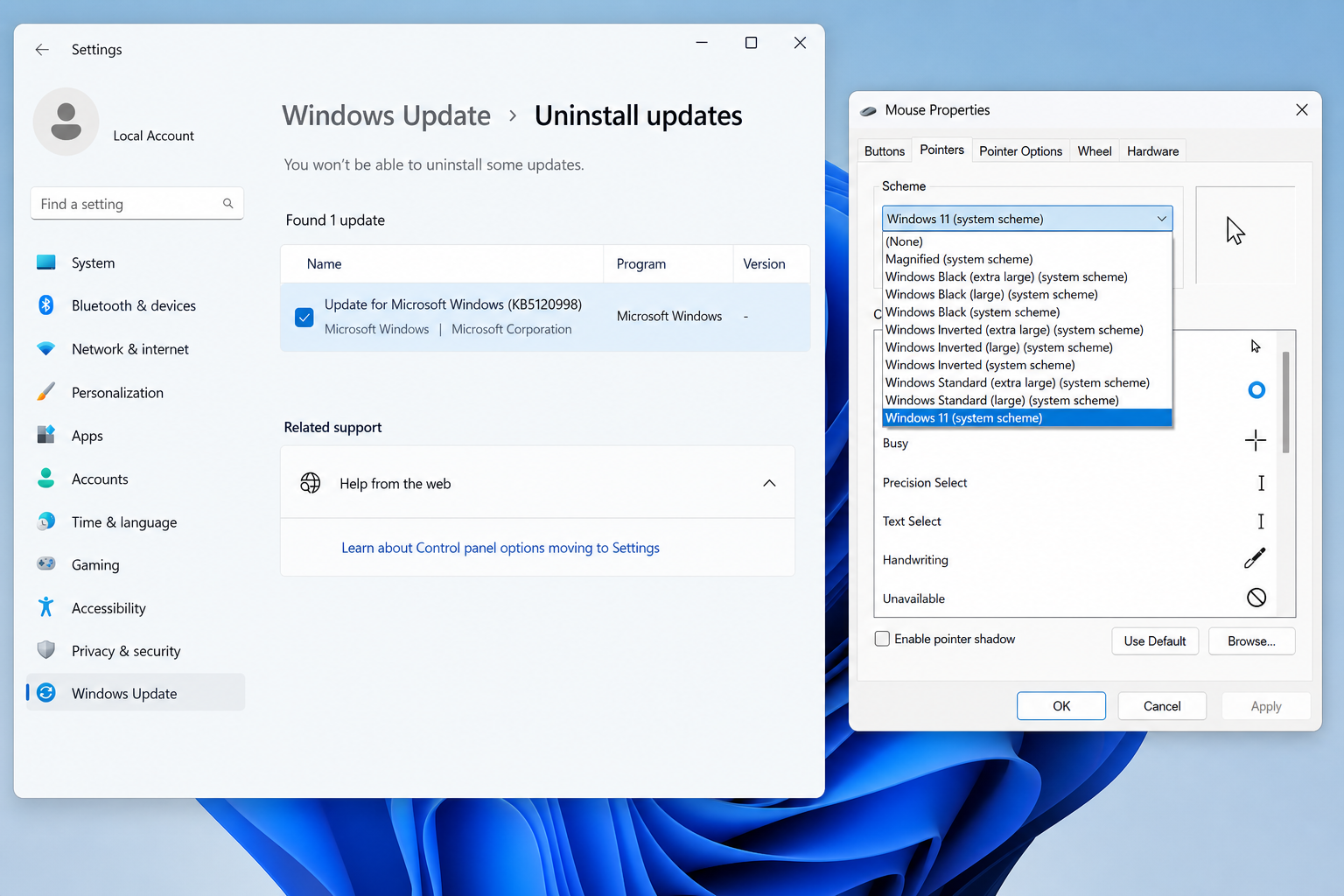
Fixing your cursor after KB5120998 requires a visit to the old-style Mouse Properties panel, which still holds the most granular cursor controls:
- Press Win + S and search for “Change how the mouse pointer looks.”
- Click the result to open Settings → Bluetooth & devices → Mouse → Additional mouse settings.
- Go to the Pointers tab.
- Open the Scheme dropdown and reselect your preferred cursor set (e.g., Windows Black, Windows Inverted, or a custom downloaded scheme).
- Click Apply → OK.
If your custom third-party cursor pack has disappeared, you may need to reinstall it. Most cursor packs install via a .inf file — right-click the .inf and choose Install, then repeat steps 1–5 above to activate it.
For users who rely on cursor size for accessibility, go to Settings → Accessibility → Mouse pointer and touch and drag the size slider back to your preferred position after restoring the scheme.
KB5120998 Fix Option 2: Wait for the Corrected Build
If you have already uninstalled KB5120998 or never installed it, the simplest long-term Windows 11 cursor wallpaper fix is to wait. Because this is an optional update, Microsoft can release a corrected cumulative preview update or fold the fix into the next mandatory Patch Tuesday release without requiring users to act further. Keep automatic updates enabled so Windows downloads the replacement build as soon as it arrives.
To pause updates temporarily and avoid accidentally reinstalling KB5120998 in the meantime:
- Go to Settings → Windows Update → Advanced options.
- Under Pause updates, select a pause period of one or two weeks.
- Check Windows Update news or the official Microsoft KB5120998 release notes for confirmation that a corrected build has been published before resuming updates.
Should You Be Worried About Windows 11 Stability?
Regressions in optional preview updates are not unusual — Microsoft uses these non-mandatory releases to gather wider feedback before a full rollout. The cursor and wallpaper reset is cosmetic rather than a security or data-loss issue, and the uninstall route is clean and well-tested. The KB5120998 update itself shipped with 35 genuine improvements (including smarter search indexing of frequently used folders), so a corrected version is likely to follow quickly.
That said, if you find Windows 11 update quality is a recurring concern, it is worth ensuring your licence is properly activated so that future cumulative updates — including security patches — arrive reliably. A corrupted or unactivated installation can sometimes cause update anomalies beyond cosmetic bugs. Shop Key Online offers genuine, Microsoft-verified Windows 11 Home Retail licences and Windows troubleshooting guides to help keep your system running cleanly.
Frequently Asked Questions
Which Windows 11 versions does KB5120998 affect?
KB5120998 affects Windows 11 version 24H2 and version 25H2. Users still on version 23H2 or earlier are not impacted by this specific cursor and wallpaper bug. Check your version by going to Settings → System → About and looking under “Windows specifications.”
Will uninstalling KB5120998 remove any security fixes?
KB5120998 is an optional preview update, not a mandatory security patch. Rolling it back does not remove any critical security fixes — those are delivered separately through mandatory Patch Tuesday cumulative updates. You can safely uninstall KB5120998 without compromising your system’s security posture.
My wallpaper is still black after the rollback — what do I do?
After uninstalling KB5120998 and restarting, right-click the desktop and choose Personalise → Background. Switch the background type from “Solid colour” back to “Picture” and reselect your image. Also check Settings → Accessibility → Contrast themes to ensure a high-contrast theme was not activated during the update process.
How do I stop Windows 11 from reinstalling KB5120998 automatically?
Because KB5120998 is optional, Windows should not reinstall it automatically after you remove it. However, to be safe, go to Settings → Windows Update → Advanced options and pause updates for one to two weeks. Resume updates once Microsoft releases a corrected build. You can also use the “Show or hide updates” troubleshooter (available from Microsoft’s support site) to block specific KB numbers.
Is my cursor fix permanent, or will the next update break it again?
Once KB5120998 is removed and you restore your cursor scheme through the Pointers tab in Mouse Properties, the setting is saved to your user profile and persists across reboots. Future updates should not reset it again unless a separate regression is introduced. A corrected build of KB5120998 is expected to preserve personalisation settings correctly.
