

Gmail’s spam filter is one of the most powerful email protection systems in the world — but in 2026, it is sending real, legitimate emails straight to junk at an alarming rate. If you have ever missed a corporate invoice, a Google Workspace notification, or a message from a trusted colleague because of Gmail spam filter misfires, you are far from alone. This guide explains exactly why it happens and walks you through the proven whitelist solutions that actually work.
Why Gmail’s Spam Filter Causes False Positives in 2026
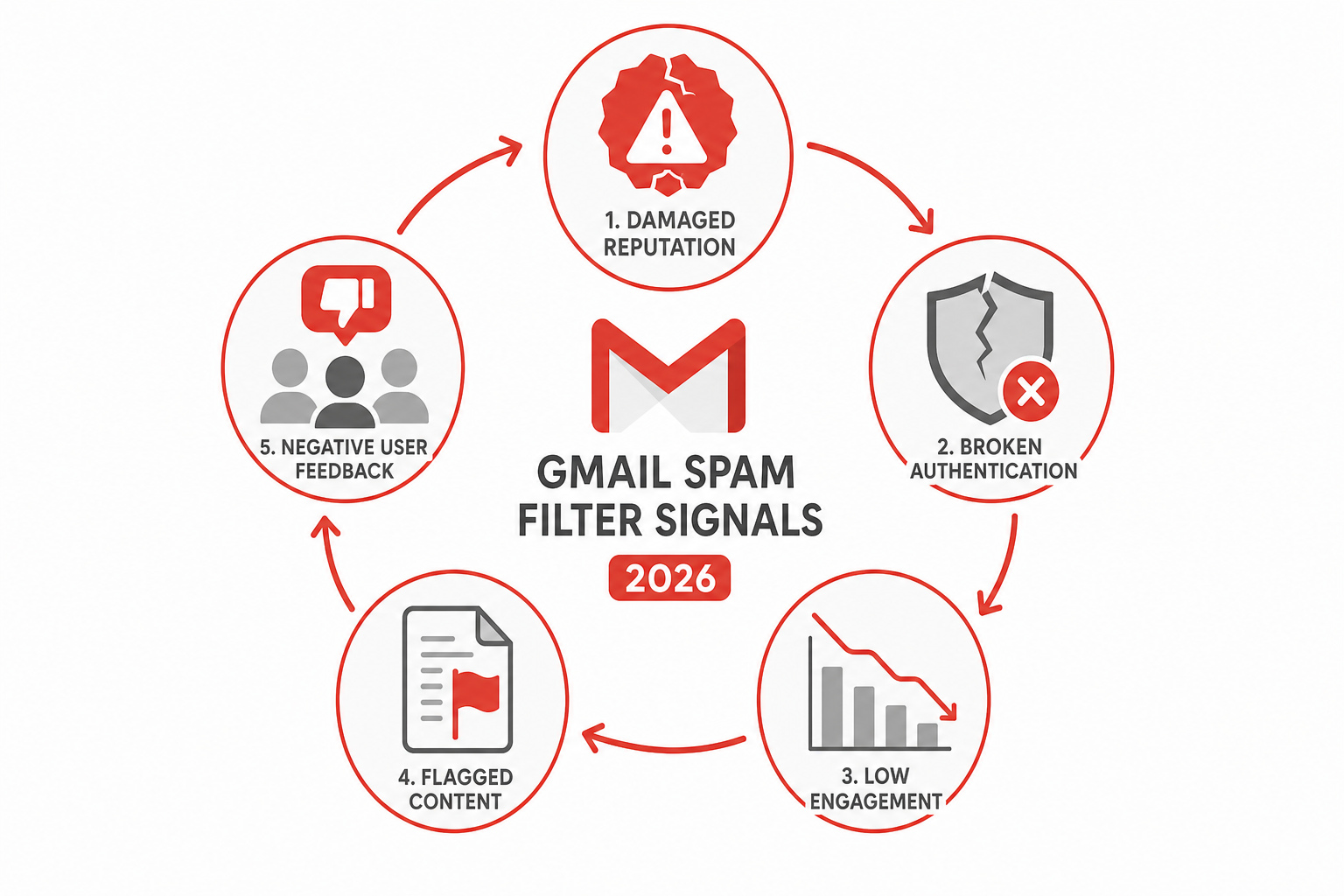
The spam filter issues plaguing Gmail users today stem from a significant enforcement shift Google made in late 2025. Gmail moved from passively warning senders about non-compliant email practices to actively rejecting or quarantining those messages. While this clamped down on genuine spam, it also caught a wave of legitimate senders in the crossfire — including some that send from google.com domains themselves.
Gmail’s filter now relies heavily on machine learning models trained on billions of signals: sender reputation scores, engagement rates, authentication records, and even the collective spam-marking behaviour of other Gmail users. The problem is that those collective signals are blunt instruments. If enough users in Gmail’s network mark a certain domain or email pattern as spam — even by accident — the filter begins applying that judgement to your inbox too, regardless of your personal history with the sender.
- Shared sender reputation: A domain used by both spammers and legitimate companies can earn a damaged reputation that affects all recipients.
- Missing authentication records: Emails lacking proper SPF, DKIM, or DMARC records are penalised heavily under Google’s 2025 Sender Guidelines update.
- Low engagement signals: Automated corporate emails (invoices, notifications, alerts) rarely get replies or clicks, so the model scores them as spam-like.
- Content pattern matching: Certain phrases, link densities, or image-to-text ratios trigger the filter even in otherwise legitimate messages.
- Aggregate user behaviour: If other Gmail accounts similar to yours frequently mark that sender as spam, Google’s filter applies the same verdict to you.
The Hacker News Effect: Even Google Domains Get Blocked
A widely discussed Hacker News thread on Gmail spam filtering highlighted a particularly ironic problem: legitimate emails originating from google.com domains were themselves being flagged as spam by Gmail. This is not a glitch. It reflects how the modern filter works — no sender is automatically trusted purely based on their domain name. Google’s own transactional emails, calendar invites, and workspace notifications can fail the very reputation checks that Gmail enforces for everyone else, particularly when they are sent through third-party relay infrastructure or when their DKIM signatures do not align perfectly with the receiving user’s filter model.
This detail matters because it proves that Gmail false positives are a systemic issue, not something you can solve by simply telling your contacts to “send from a reputable address.” The fix has to happen at the recipient end.
How to Fix Gmail Spam Filter Issues: Whitelisting That Works
The good news is that Gmail gives both individual users and Google Workspace administrators several reliable tools to override the Gmail spam filter and protect trusted senders. Use the method that matches your situation.
Method 1 — Mark as Not Spam (Quickest Fix)
When you find a legitimate email in your Spam folder, open it and click Report not spam. Gmail records this as a correction signal and should deliver future messages from that sender to your inbox. This works, but it is reactive — you have to catch the problem first. Always check your Spam folder regularly if you are expecting time-sensitive messages.
Method 2 — Add the Sender to Google Contacts
Gmail gives extra inbox priority to people in your Contacts list. Open Gmail, go to Google Contacts, and add the sender’s full email address. This is one of the simplest and most reliable ways to address Gmail false positives from trusted individuals, since the filter treats known contacts with a higher trust score than strangers.
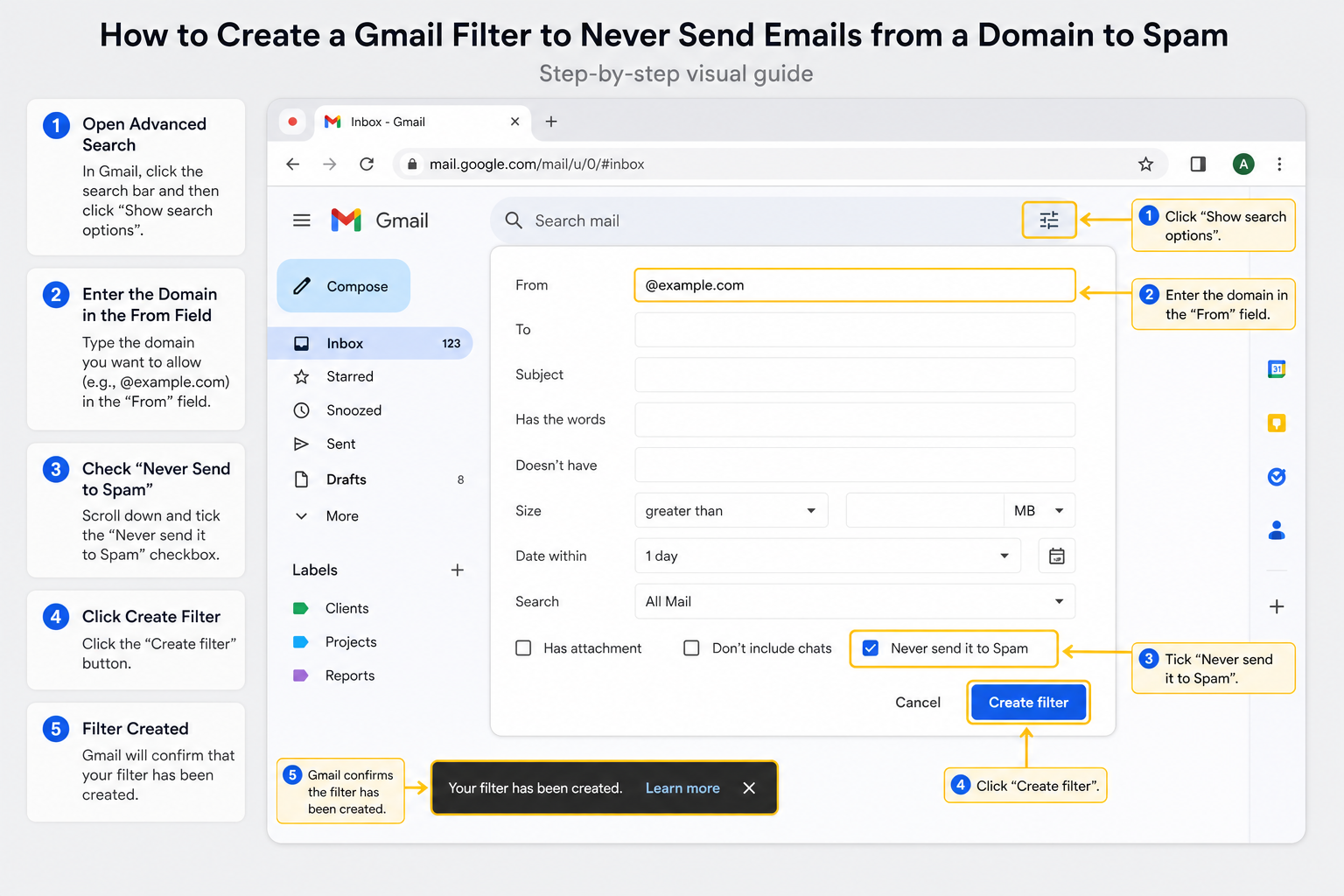
Method 3 — Create a Gmail Filter (Best Long-Term Solution)
This is the most robust Gmail whitelist fix for individual users:
- Click the search bar in Gmail and select Show search options.
- In the From field, enter the sender’s email address or entire domain (e.g. @companyname.com).
- Click Create filter.
- Tick Never send it to Spam, then click Create filter again.
You can also add Always mark it as important for a double layer of protection. This filter runs before Gmail’s spam model, so it effectively bypasses the spam filter issues for that sender entirely.
Method 4 — Google Workspace Admin Allowlist (For Business Users)
If you manage a Google Workspace environment and your users are seeing legitimate corporate email quarantined at scale, the admin-level allowlist is the correct fix. According to Google’s official Workspace admin documentation, you can create an approved senders list or an IP allowlist that forces Gmail to bypass its spam filters for specific domains or IP addresses:
- Go to the Google Admin console → Menu → Apps → Google Workspace → Gmail.
- Select Spam, Phishing and Malware.
- Under Email allowlist, add the trusted IP addresses or domains.
- Alternatively, use Approved senders under the Spam section to add addresses by domain that will bypass the spam filter entirely.
This is especially important for businesses receiving automated billing emails, CRM notifications, or ERP system alerts that would never generate the kind of user-engagement signals Gmail’s AI expects from human correspondence.
Understanding Gmail Authentication: SPF, DKIM, and DMARC
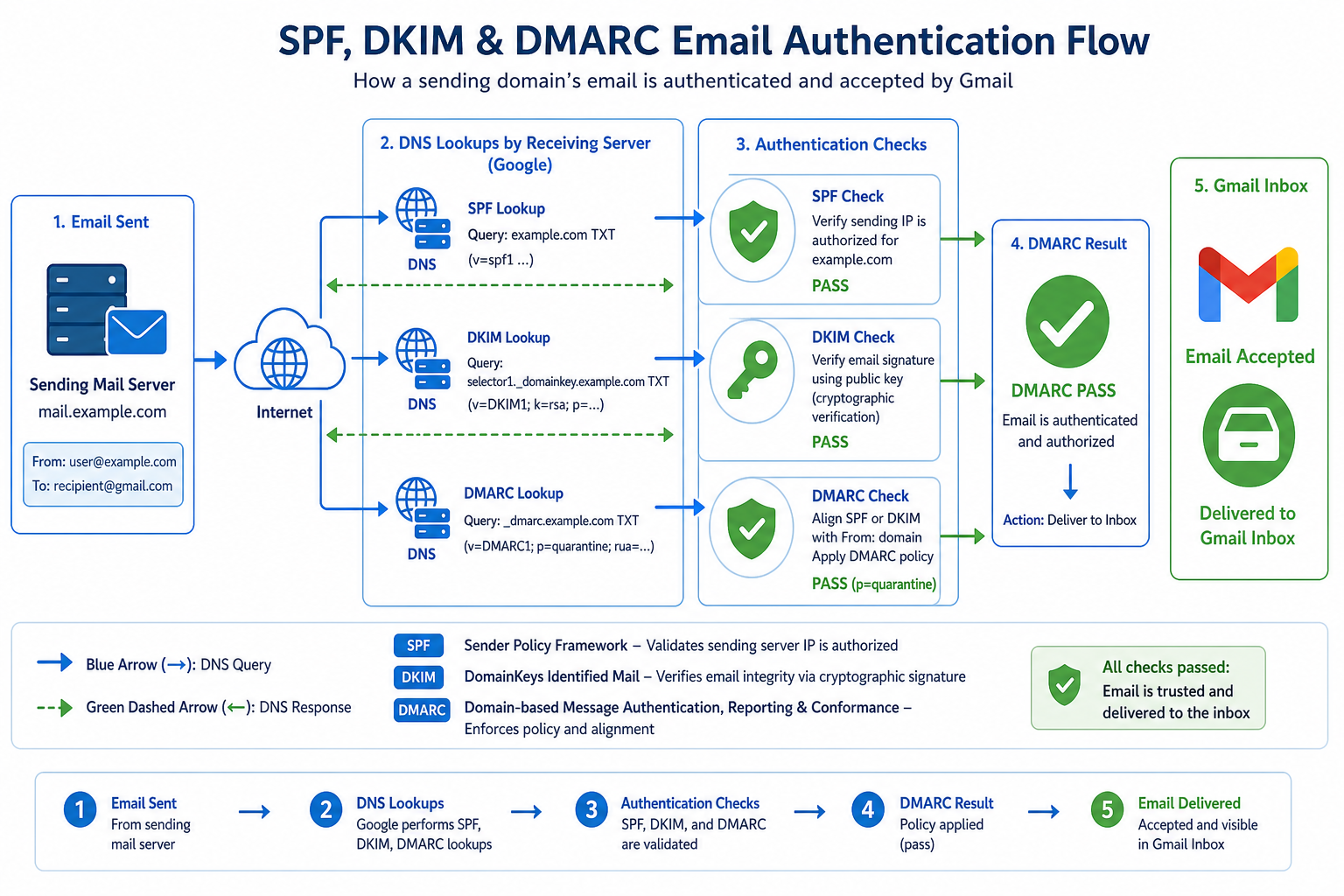
From a sender’s perspective, the single biggest cause of spam filter issues is missing or misconfigured email authentication. In 2025, Google made SPF, DKIM, and DMARC records mandatory for high-volume senders, and by 2026 these checks apply broadly. Here is what each one does:
- SPF (Sender Policy Framework): A DNS record that lists which mail servers are authorised to send email on behalf of your domain. Without it, Gmail cannot verify your domain is legitimate.
- DKIM (DomainKeys Identified Mail): Adds a cryptographic signature to every outgoing email so recipients can confirm the message was not tampered with in transit.
- DMARC (Domain-based Message Authentication, Reporting & Conformance): Tells receiving servers what to do with emails that fail SPF or DKIM checks — quarantine, reject, or deliver. A published DMARC policy signals legitimacy to Gmail’s filter.
If you are an IT administrator whose users’ outbound emails are being caught in Gmail false positives at other organisations, checking and fixing these three DNS records is the most impactful step you can take. Google’s own data indicates that senders with all three records properly configured are far less likely to be misclassified.
Gmail Spam Filter Issues and Productivity: The Hidden Cost
The business impact of the Gmail whitelist fix conversation goes beyond simple annoyance. Missed invoices create payment delays. Quarantined security alerts mean slower incident response. Blocked onboarding emails leave new employees stranded. According to community reports on Google’s own support forums, some users have seen nearly half of their daily legitimate email volume routed to Spam during periods of aggressive filter behaviour — a staggering level of disruption for any professional workflow.
For teams relying on productivity tools and properly licensed software ecosystems to communicate efficiently, keeping email reliable is just as important as keeping software updated. If your organisation runs Google Workspace alongside other productivity suites, it is worth investing time in configuring both your sending domain authentication and your recipient-side allowlists simultaneously.
For more tips on getting the most out of Gmail, check out our guides on how to use Gmail’s Undo Send feature and how to create a mailing list in Gmail — both of which pair naturally with a properly tuned inbox.
Quick Reference: Gmail Spam Filter Fixes at a Glance
- Individual user, one sender: Mark as Not Spam + add to Contacts.
- Individual user, recurring issue: Create a Gmail filter with “Never send to Spam.”
- Workspace admin, internal domain issue: Add trusted IP ranges to the Email Allowlist in Admin console.
- Workspace admin, third-party sender: Use the Approved Senders list under Spam settings.
- Sender wanting fewer false positives: Publish valid SPF, DKIM, and DMARC records and follow Google’s Sender Guidelines.
FAQ
Why is Gmail marking emails from google.com as spam?
Gmail’s spam filter evaluates messages on technical signals like authentication records and engagement patterns, not just the sender’s domain name. Even emails sent from Google’s own infrastructure can fail these checks if they route through misaligned relay servers or if aggregate user behaviour has flagged that message pattern. The fix is to create a Gmail filter or admin allowlist entry for the specific sender, which overrides the spam model regardless of domain reputation.
Will marking an email “Not Spam” actually fix the Gmail spam filter issue?
It helps, but it is not a permanent solution on its own. Marking an email as Not Spam sends a correction signal to Gmail’s machine learning model and can improve future delivery from that sender. However, Gmail false positives can recur if the sender’s overall reputation score changes or if new content patterns trigger the filter again. Pairing “Not Spam” with a dedicated Gmail filter set to “Never send to Spam” gives you a much more durable fix.
How do I whitelist an entire domain in Gmail?
Open Gmail’s search bar, click Show search options, and enter the domain in the From field using the format @domain.com. Click “Create filter,” tick “Never send it to Spam,” and confirm. This creates a permanent rule that applies to every future message from that domain, bypassing Gmail’s spam scoring entirely for those senders. If you are a Workspace admin, use the Approved Senders list in the Admin console for organisation-wide coverage.
Why did Gmail’s spam filter become more aggressive in 2026?
Google enforced stricter Sender Guidelines from late 2025 onwards, shifting from warning non-compliant senders to outright rejecting or quarantining their messages. This dramatically reduced actual spam volumes but also increased the rate of false positives for legitimate senders who lacked proper SPF, DKIM, or DMARC records, or whose email content matched patterns common in spam campaigns. The 2026 environment is simply stricter than anything Gmail users experienced before.
Can the Gmail spam filter be turned off completely?
Individual Gmail users cannot disable the spam filter entirely — it is a platform-level feature. However, Google Workspace administrators can configure the filter so aggressively that specific senders or IP ranges bypass it completely via the Admin console allowlist. For personal Gmail accounts, creating targeted “Never send to Spam” filters for every trusted sender is the closest equivalent and works reliably in practice.
