
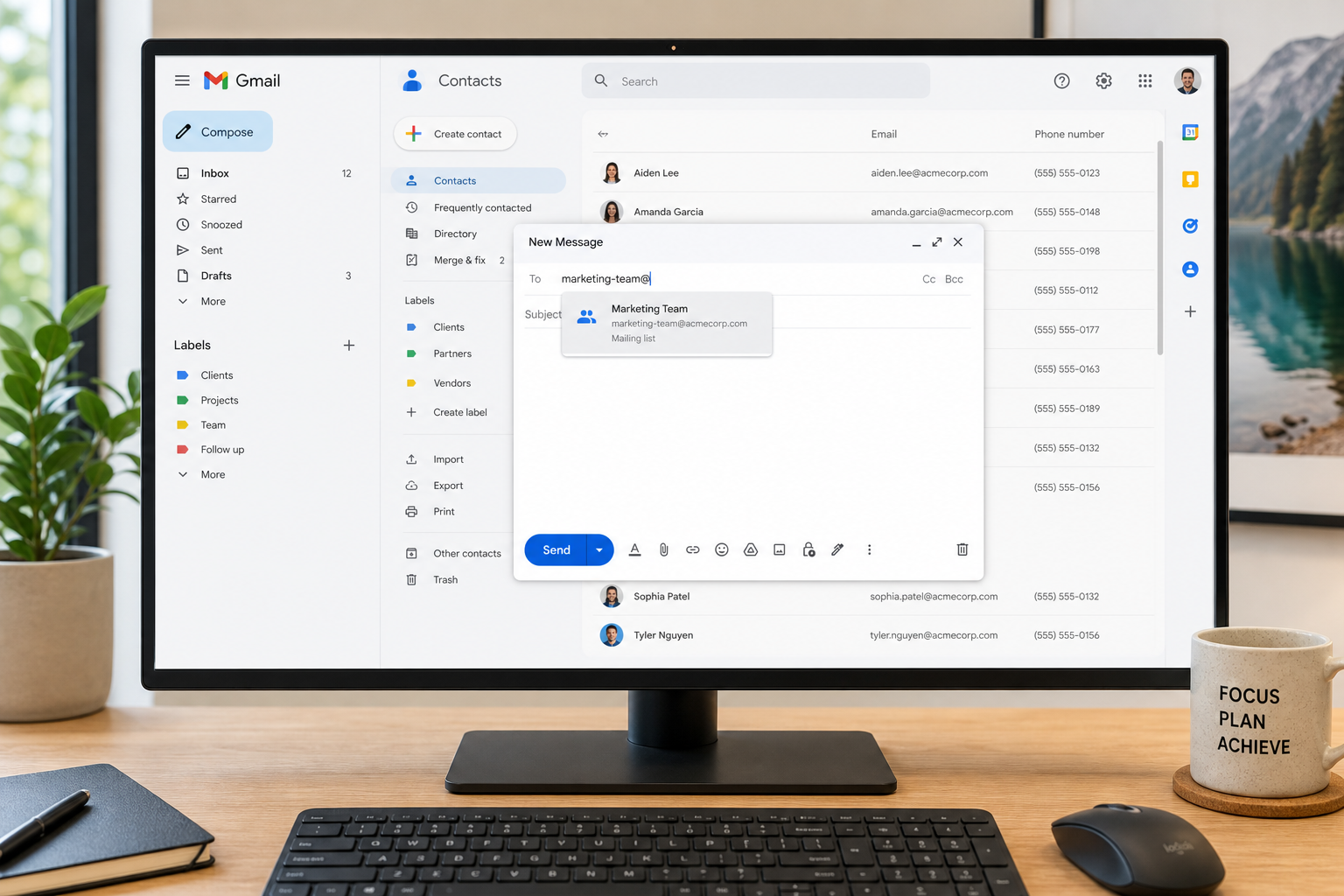
What Is a Mailing List on Gmail?

A mailing list on Gmail lets you send a single email to multiple recipients at once without typing every address manually. Gmail doesn’t have a dedicated “mailing list” button — instead, it uses Google Contacts labels as contact groups, which act as your Gmail distribution list. Once set up, you simply type the label name in the To field and Gmail auto-populates every address in that group. This saves significant time for anyone who regularly emails teams, clients, or project groups.
Why Create a Gmail Mailing List?
A Gmail contact group is ideal for anyone who sends recurring emails to the same set of people — project managers, teachers, freelancers, small business owners, and more. Here are the key benefits:
- Speed: Reach 50+ recipients in seconds with one label name.
- Accuracy: Eliminate typos by using saved, verified contacts.
- Organisation: Keep different audiences (clients, colleagues, family) neatly separated.
- Zero extra cost: It’s completely free with any Google account.
- No third-party tools required: Everything lives inside Google Contacts and Gmail.
According to Google, Gmail has more than 1.8 billion active users worldwide, making it the most widely used email platform on the planet — so mastering its group-email features is a genuinely high-value productivity skill.
How to Create a Mailing List on Gmail: Step-by-Step

Creating a Gmail mailing list takes under five minutes using Google Contacts. Follow these steps exactly and you’ll have a working distribution list ready to use immediately.
Step 1 — Open Google Contacts
Go to contacts.google.com in your browser while signed in to your Google account. This is the hub where all your Gmail contact groups are created and managed. You can also reach it from the Google Apps grid (the nine-dot menu) inside Gmail.
Step 2 — Create a New Label
In the left-hand sidebar, find the Labels section and click the + Create label button (it may appear as a pencil/add icon). Type a clear, descriptive name for your mailing list — for example, “Marketing Team”, “Book Club”, or “Client Newsletter”. Click Save when done. This label will become your Gmail distribution list identifier.
Step 3 — Add Contacts to the Label
Now populate your Gmail mailing list with the right people:
- In Google Contacts, tick the checkbox next to each contact you want to include. You can select multiple contacts at once.
- Click the Manage labels icon (a label/tag icon in the top toolbar).
- Select the label you just created from the dropdown menu.
- Click Apply. The selected contacts are now part of your Gmail contact group.
If a contact doesn’t exist yet, click Create contact in the top-left corner of Google Contacts, fill in their name and email address, save them, and then add them to your label.
Step 4 — Use Your Gmail Distribution List to Send an Email
Head back to Gmail and click Compose to open a new email window. In the To field, start typing the name of your label — for example, “Marketing Team”. Gmail will suggest the label name and display how many contacts are in it. Click on the suggestion and Gmail automatically adds every address from that group. Write your message and hit Send. Every member of your mailing list receives the email instantly.
Step 5 — Edit or Update Your Gmail Mailing List
Your list will need updating as people join or leave. To add new members, return to contacts.google.com, select the new contact, click Manage labels, and tick your label. To remove someone, open the label in the left sidebar, hover over the contact, click the three-dot menu, and choose Remove from label. The label itself remains intact — only that person is removed.
Gmail Mailing List Limits You Should Know
Before you start sending, be aware of Gmail’s sending limits so you don’t accidentally hit a wall:
- Free Gmail accounts: You can send to a maximum of 500 recipients per day across all emails.
- Google Workspace accounts: The daily limit rises to 2,000 recipients per day.
- Recipients per email: Gmail allows up to 500 addresses in a single message (To, CC, and BCC combined).
- BCC tip: When emailing a large group where recipients don’t know each other, use BCC to protect everyone’s privacy and avoid reply-all chaos.
If your list regularly exceeds these limits, you’ll need a dedicated email marketing platform such as Mailchimp or Brevo — but for most personal and small-business use cases, a Gmail distribution list is more than sufficient.
How to Use Google Groups as a Gmail Mailing List
For teams that need a shared mailing list — where multiple people can send and receive messages — Google Groups is the more powerful option. Unlike a private Gmail contact group (which only you can use), a Google Group gets its own email address (e.g., [email protected]) that any member can send to.
To create one, visit groups.google.com, click Create group, give it a name and email address, and invite members. Any email sent to the group address is delivered to every member. This is ideal for support inboxes, club newsletters, or collaborative project teams where multiple people need to manage incoming emails together.
For the official, always-up-to-date instructions straight from Google, refer to the Google Contacts Help — View, group and share contacts guide, which covers every option available in the current interface.
Tips for Managing Your Gmail Distribution List Effectively

A well-maintained Gmail mailing list saves hours over time. Use these practical habits to keep yours in good shape:
- Name labels clearly: Use specific names like “Q3 Clients” instead of vague ones like “Group 1” — you’ll thank yourself later.
- Review quarterly: Set a calendar reminder every three months to audit your Gmail contact group and remove stale addresses.
- Use BCC for privacy: When sending to people who don’t know each other, always BCC the label to protect recipient privacy.
- Combine labels with Gmail filters: Create filters that automatically label incoming replies, keeping related conversations organised.
- Export your contacts: Regularly export your Google Contacts as a CSV file (File > Export) so you have a backup of your mailing list data.
- Test before a big send: Send a test email to yourself or a small sub-group before blasting your full Gmail distribution list.
Gmail Mailing List vs Email Marketing Tools
Gmail contact groups are powerful for small-scale, personal communication — but they have real limitations compared to dedicated email marketing platforms. Here’s a quick comparison to help you choose the right tool:
- Gmail distribution list: Free, instant to set up, great for up to a few hundred contacts, no unsubscribe link, no analytics, personal use only.
- Email marketing tools (Mailchimp, Brevo, etc.): Paid tiers for large lists, automated sequences, open-rate tracking, GDPR-compliant unsubscribe links, professional templates.
If you’re running a business newsletter, product launch campaign, or any communication where compliance and analytics matter, invest in a proper email marketing platform. For internal team updates, event invites, or small group communications, your Gmail mailing list is absolutely the right tool.
Boost Your Productivity Beyond Gmail
Mastering your Gmail distribution list is just one piece of the productivity puzzle. If you rely on email-heavy workflows, pairing Gmail with a full office suite unlocks even more efficiency. Tools like Microsoft Office include Outlook, which offers its own robust distribution list and rules engine — a great complement to Gmail for professional environments. Explore our comparison of Copilot vs Gmail Gemini AI email integration to see how AI is transforming email productivity in 2025, and check out the essential Office keyboard shortcuts guide to shave even more time off your daily workflow.
FAQ
Can I create a mailing list on Gmail for free?
Yes, completely free. Gmail’s mailing list feature is built into Google Contacts and available to every Google account holder at no cost. You don’t need any paid tools or extensions — just a Google account and a few minutes to set up your labels.
How many people can I add to a Gmail mailing list?
There’s no hard cap on the number of contacts inside a Google Contacts label. However, Gmail limits free accounts to 500 recipients per day across all messages, and a single email can have a maximum of 500 addresses in the To, CC, and BCC fields combined. Google Workspace accounts get a higher daily limit of 2,000 recipients.
What’s the difference between a Gmail contact group and Google Groups?
A Gmail contact group (label) is a private list only you can use. It doesn’t have its own email address. Google Groups, by contrast, creates a shared inbox with a dedicated email address that multiple members can send to and receive from — better suited for teams or organisations that manage communication collaboratively.
Can I import contacts from Excel or CSV into a Gmail mailing list?
Yes. In Google Contacts, click the Import option in the left sidebar and upload a CSV or vCard file. Once imported, you can select all the new contacts and assign them to a label in bulk, instantly building your Gmail distribution list from an existing spreadsheet.
Why isn’t my Gmail contact group showing up when I compose an email?
Make sure you’re signed into the same Google account in both Google Contacts and Gmail. Start typing the exact label name in the To field — Gmail’s autocomplete should suggest it after two or three characters. If it still doesn’t appear, try refreshing Gmail or waiting a few minutes, as contact sync can occasionally take a short time to update.
Is it safe to use a Gmail mailing list for marketing emails?
For small, permission-based groups (colleagues, friends, existing clients) it’s fine. For large-scale marketing campaigns, Gmail isn’t the right tool — you risk hitting sending limits, being flagged as spam, and you won’t have GDPR-compliant unsubscribe functionality. Use a dedicated email marketing platform for that purpose.
