
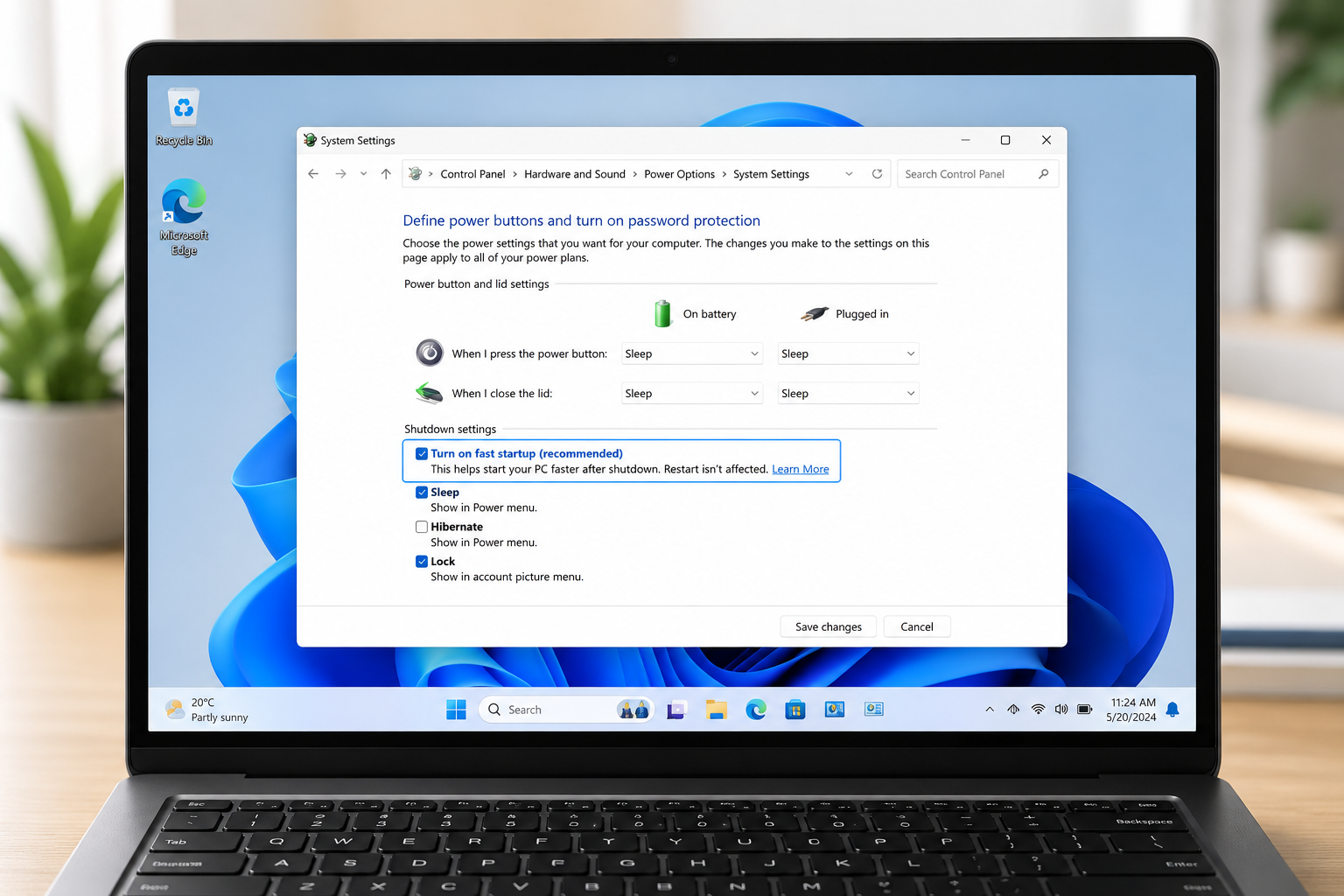
If you want to boot faster on Windows 11, the single quickest win costs you nothing — it’s already built into your PC. Microsoft’s Fast Startup feature can reduce cold-boot times by up to 50%, yet it’s switched off on many machines simply because users don’t know it’s there. This guide walks you through every step to find it, enable it, and understand exactly what it does under the hood.
What Is Fast Startup and How Does It Help You Boot Faster on Windows 11?
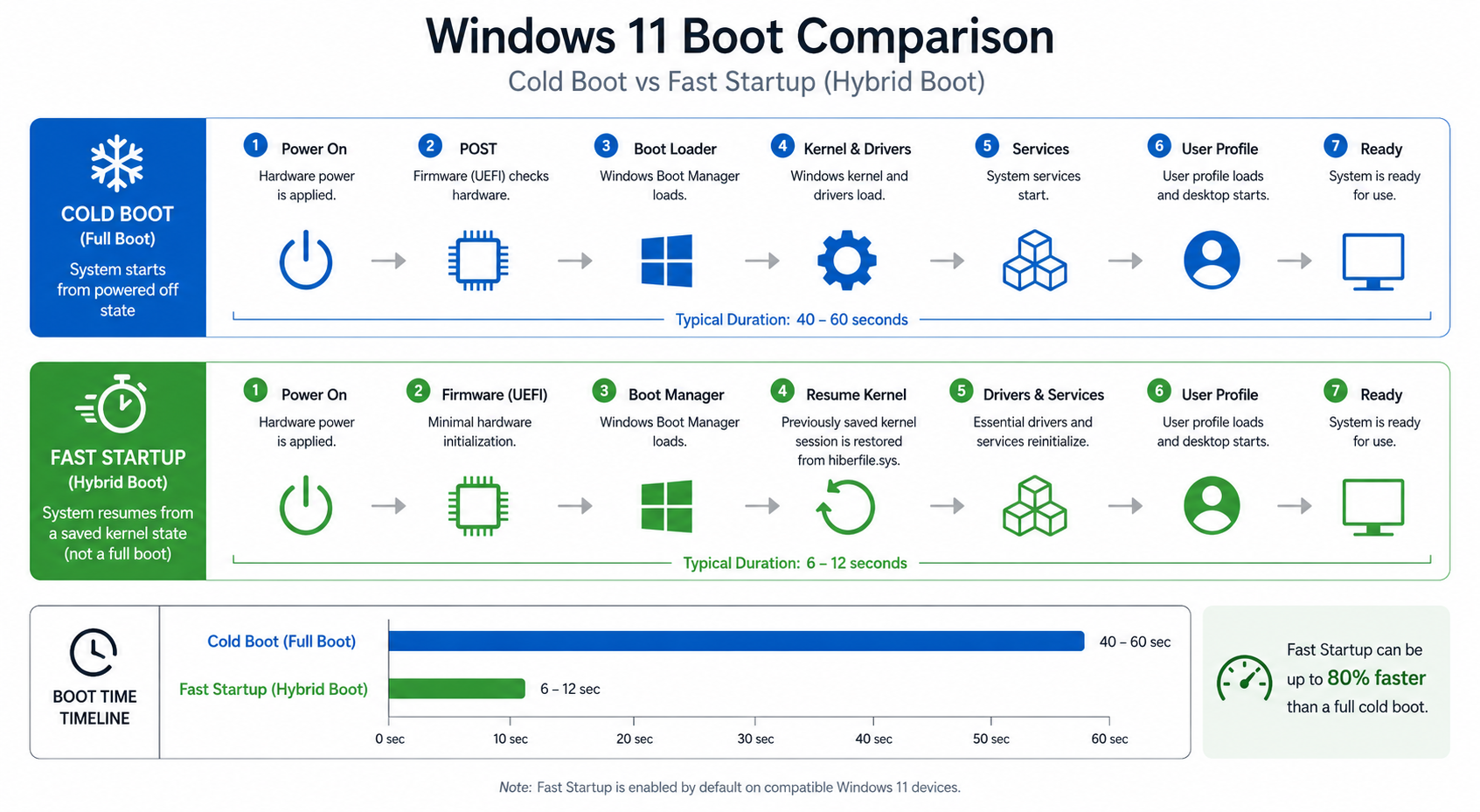
Fast Startup — sometimes called Hybrid Boot — is a power feature introduced by Microsoft that blends a traditional shutdown with elements of hibernation. When you shut down a PC with Fast Startup active, Windows logs out all user sessions as normal but then saves the kernel session and loaded drivers to a hibernation file (hiberfil.sys) on disk. On the next boot, instead of reinitialising the kernel from scratch, Windows simply reloads that saved state, skipping the most time-consuming part of a cold start.
The practical result is a Windows 11 startup speed that feels noticeably snappier — particularly on machines still running a traditional hard drive. Independent testing by HP’s technical team found that Fast Startup can deliver a 30–60% reduction in startup time compared to a regular cold boot, making it one of the fastest free performance upgrades available in Windows 11.
Microsoft labels this option recommended for a reason — for most home and office users it is a safe, transparent change that requires zero ongoing maintenance once enabled.
Before You Begin: Things to Check
Fast Startup works best in certain conditions. Run through this quick checklist before enabling it:
-
Administrator rights: You need a local administrator account. Standard users cannot change the relevant power settings.
-
Hibernation must be enabled: Fast Startup depends on the hibernation file. If you previously ran
powercfg /h off, re-enable hibernation first withpowercfg /h onin an elevated Command Prompt. -
Dual-boot setups: If your PC boots both Windows and Linux (or an older Windows version), Fast Startup can cause the secondary OS to see the Windows drive as improperly unmounted. Consider keeping it off or using Restart — not Shut Down — when switching operating systems.
-
BIOS/UEFI access: A Fast Startup shutdown does not fully reset the hardware, so BIOS key presses (F2, Del) may be missed. If you need to enter BIOS frequently, use Restart instead of Shut Down.
How to Speed Up Windows 11 Boot with Fast Startup — Step by Step
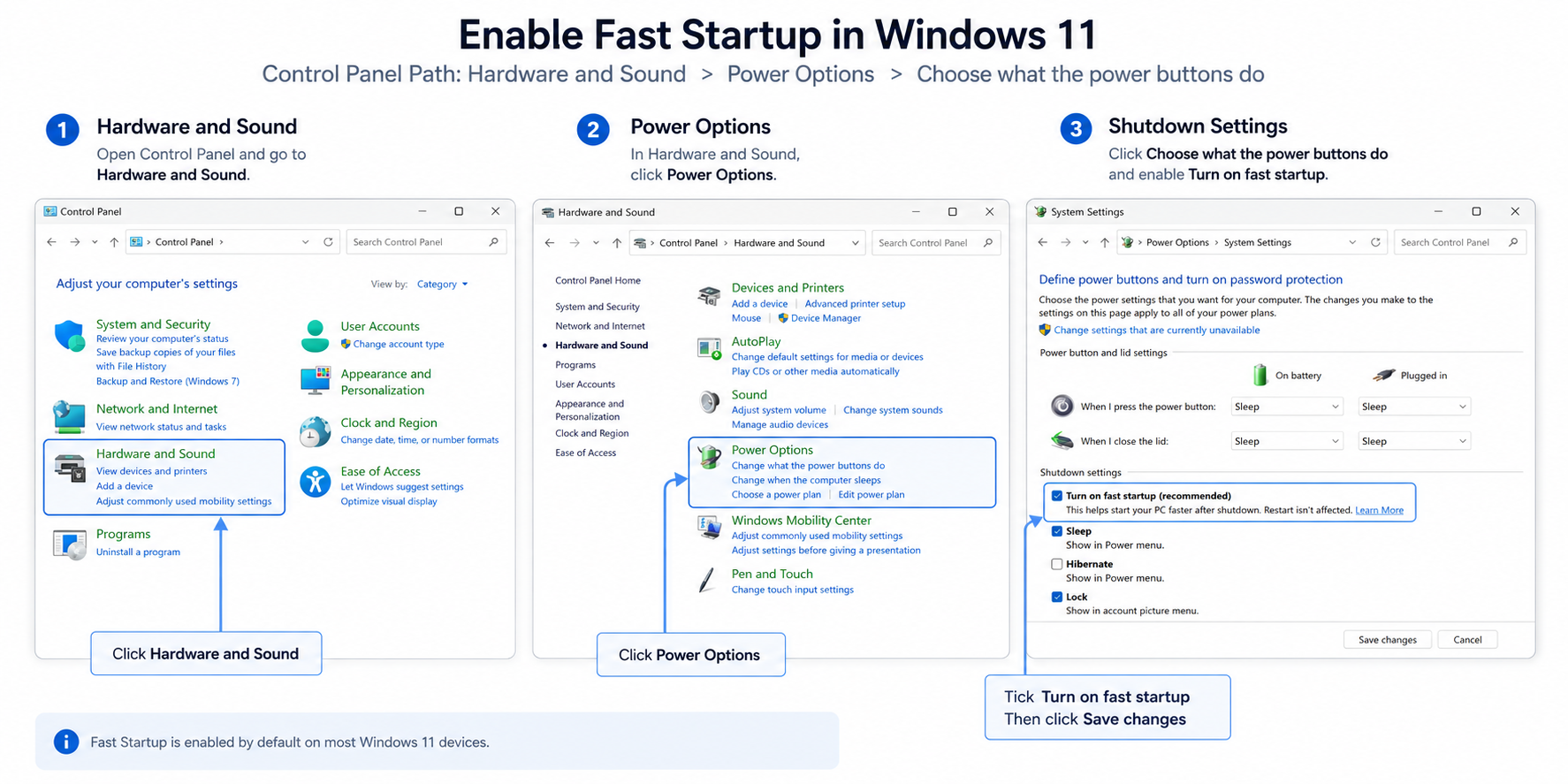
Enabling Fast Startup takes less than two minutes. Follow each step in order and you’ll be done before your next cup of coffee is poured.
Step 1 — Open Control Panel
Press Win + R on your keyboard to open the Run dialog. Type control and press Enter. This launches the classic Control Panel — not the modern Settings app — which is where the Fast Startup toggle actually lives.
Alternatively, click the Start button, type Control Panel in the search bar, and select it from the results.
Step 2 — Navigate to Power Options
Inside Control Panel, make sure View by (top right) is set to Category. Click Hardware and Sound, then click Power Options. You’ll arrive at the power plan selection screen.
Step 3 — Choose What the Power Buttons Do
In the left-hand sidebar, click Choose what the power buttons do. This opens the System Settings panel, which controls the behaviour of the power and sleep buttons as well as the lid (on laptops).
Step 4 — Unlock the Greyed-Out Setting
Scroll down to the Shutdown settings section. You will almost certainly see that the Fast Startup checkbox is greyed out and unclickable. This is by design — Microsoft locks it to prevent accidental changes. Click the blue link that reads Change settings that are currently unavailable. Windows will prompt for administrator confirmation (or a UAC dialog if you’re on a standard account). After confirming, the Shutdown settings section becomes editable.
Step 5 — Enable Fast Startup
Tick the checkbox labelled Turn on fast startup (recommended). The word “recommended” is Microsoft’s own endorsement — this is the intended default for most Windows 11 PCs.
Step 6 — Save Changes and Restart
Click Save changes at the bottom of the page. The setting takes effect from the very next shutdown. To experience the improvement, shut down your PC (don’t restart — that bypasses Fast Startup) and then power it back on. The speed difference is usually immediately noticeable, especially on HDD-based machines.
Windows 11 Startup Speed: What to Expect After Enabling
The improvement you see depends on your hardware. Here’s a realistic breakdown:
-
Traditional hard drive (HDD): The most dramatic gains. Boot times can drop from 60–90 seconds to under 30 seconds on older spinning-disk systems.
-
SATA SSD: Moderate improvement — already-fast boots get noticeably crisper, often shaving 5–10 seconds off a 15-second boot.
-
NVMe SSD: Smallest absolute gain (already booting in under 10 seconds), but the boot still feels more responsive and consistent.
In short, the slower your storage medium, the more dramatic your Windows 11 startup speed improvement will feel — which is exactly why Microsoft marks this as a recommended setting even for modern hardware.
Windows 11 Fast Startup vs. Restart: A Key Difference to Know
One of the most common points of confusion around Windows 11 fast startup is the relationship between Shut Down and Restart. Fast Startup only applies to Shut Down. When you click Restart, Windows performs a full cold reboot regardless of this setting — it completely reinitialises the kernel. This means:
-
If Windows Update asks you to restart, it will apply patches via a full reboot. Fast Startup won’t interfere.
-
If you’re troubleshooting a driver issue and want a clean slate, choose Restart, not Shut Down.
-
If you’re accessing the BIOS, use Restart (or use Settings → System → Recovery → Advanced Startup).
This distinction also explains why some users report that a problem “fixed itself after a restart” but came back after a shutdown and power-on — Fast Startup reloaded the cached kernel state, preserving whatever was causing the issue.
How to Speed Up Windows 11 Boot Even Further
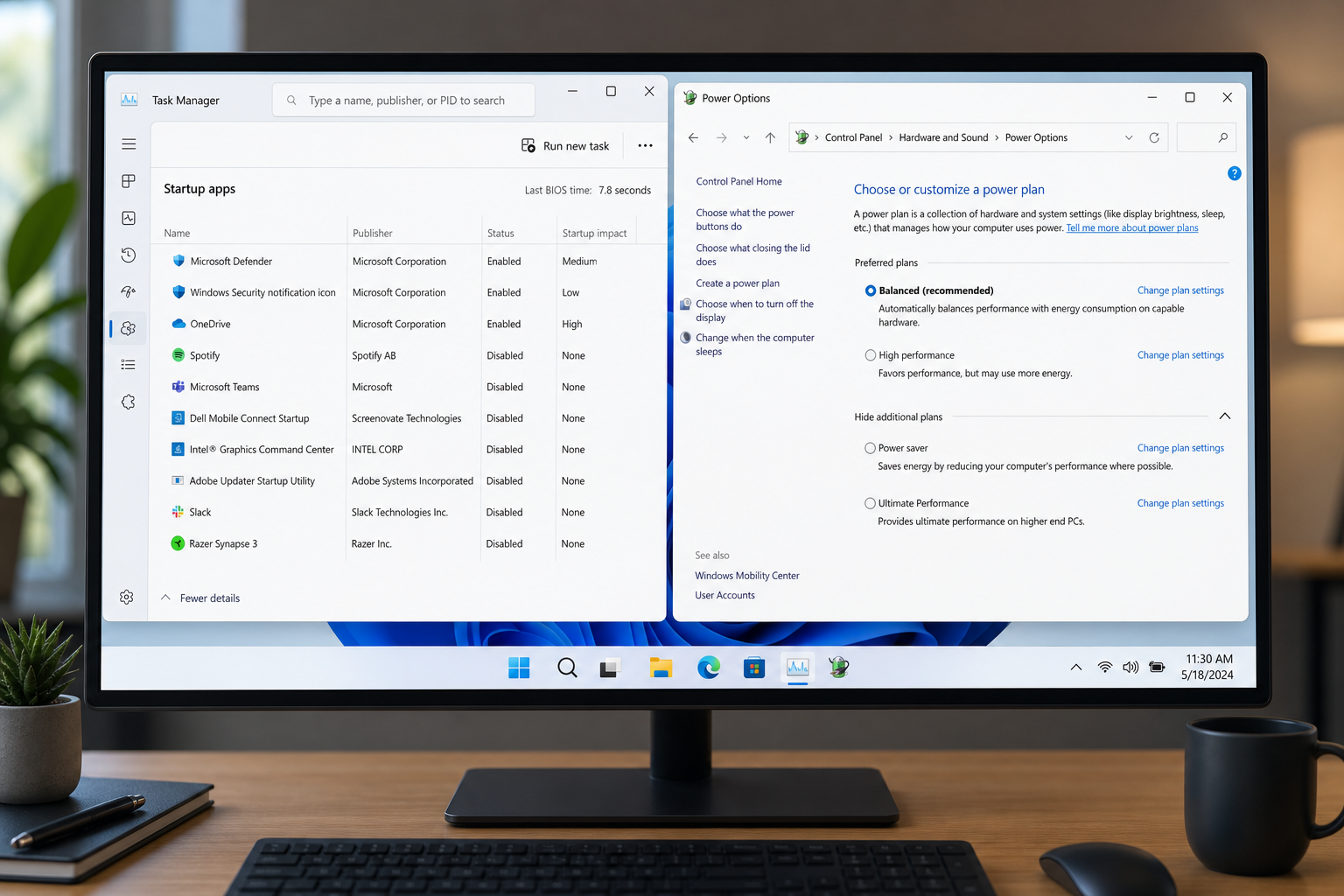
Fast Startup is a great first step, but it’s not the only lever you can pull. Combine it with these complementary tweaks to speed up Windows 11 boot times across the board:
-
Audit your startup apps: Press Ctrl + Shift + Esc to open Task Manager, go to the Startup apps tab, and disable any programme you don’t need immediately on login. Each disabled app shaves seconds off the login phase.
-
Switch to a Balanced or High Performance power plan: An aggressively power-saving plan can throttle CPU speed during boot. A Balanced plan gives the processor headroom to initialise quickly.
-
Keep Windows Update current: Microsoft regularly ships boot-path optimisations through updates. A well-patched Windows 11 typically boots faster than a neglected one.
-
Upgrade storage: No software tweak beats the hardware reality — an NVMe SSD is the single biggest boot-time upgrade for any PC still running an HDD.
If you want a full Windows 11 licence to start fresh on an optimised system, Microsoft Windows 11 Pro OEM from ShopKeyOnline is available from €15.95 and ships as an instant digital key — no waiting, no physical media. For users who want both Windows and productivity software in one purchase, the Windows 11 Pro Retail + Office 2021 Pro Plus bundle is excellent value at €36.90.
Troubleshooting: Cannot Boot Faster on Windows 11 Because Fast Startup Is Greyed Out
If the checkbox remains unavailable even after clicking “Change settings that are currently unavailable”, the most likely cause is that hibernation is disabled on your system. Open an elevated Command Prompt (search for cmd, right-click, Run as administrator) and type:
powercfg /h on
Press Enter, then close the Command Prompt and return to the Power Options page. The Fast Startup option should now be available to tick. If it is still missing, verify that your user account has local administrator privileges via Settings → Accounts → Your info.
Should You Always Keep Windows 11 Fast Startup On?
For the vast majority of single-OS Windows 11 users, the answer is yes — leave it on. It is a Microsoft-recommended setting, it is transparent during normal use, and the boot time savings are real and consistent. The cases where turning it off makes sense are narrow but worth knowing:
-
You run a dual-boot system and your secondary OS reports disk errors on the Windows partition.
-
You regularly access BIOS/UEFI settings via hardware key presses at boot.
-
A specific peripheral (older USB hub, legacy graphics card) fails to initialise correctly after a Fast Startup — a known edge case on some hardware.
-
You’re troubleshooting a persistent software bug and need guaranteed clean-state boots every time.
Outside these scenarios, enabling Windows 11 fast startup is a simple, effective, and completely reversible way to improve your daily computing experience.
Frequently Asked Questions
Does Fast Startup affect Windows updates?
No. When Windows Update requires a restart to apply patches, it triggers a full cold reboot that bypasses Fast Startup entirely. Your updates will install correctly regardless of whether Fast Startup is enabled. If you’re concerned, always choose Restart (not Shut Down) immediately after an update prompt.
Will enabling Fast Startup drain my laptop battery overnight?
No. Fast Startup saves the kernel state to disk during shutdown — the PC is completely powered off afterwards. Unlike Sleep or Hibernate, there is no ongoing power draw. Your battery level after a Fast Startup shutdown will be identical to a regular shutdown.
Is Fast Startup the same as Sleep mode?
No. Sleep keeps the session in RAM with the PC in a low-power state, so it consumes a small amount of power. Fast Startup only occurs during a proper Shut Down, writing kernel data to the hibernation file on disk and then cutting power fully. They achieve a similar fast-resume feeling but via completely different mechanisms.
Can Fast Startup cause problems with external drives or USB devices?
Occasionally. Because the kernel session is cached rather than fully reinitialised, some external USB devices — particularly older hubs or drives — may not be recognised correctly after a Fast Startup boot. If you experience this, try unplugging and replugging the device, or consider disabling Fast Startup as a test to confirm the cause.
How do I turn off Fast Startup if I change my mind?
Follow the same path: Control Panel → Hardware and Sound → Power Options → Choose what the power buttons do → Change settings that are currently unavailable. Then simply uncheck the “Turn on fast startup” box and click Save changes. The next shutdown will be a full cold boot again.
