

Word formatting styles are the single most underused feature in Microsoft Word — and mastering them saves hours on every long document you write. Instead of manually setting fonts, spacing, and indentation paragraph by paragraph, styles let you define a look once and apply it instantly, everywhere. Whether you’re writing a 100-page report solo or collaborating with a team across multiple chapters, this guide shows you exactly how to create, apply, modify, and share Word styles for consistently professional results.
What Are Word Styles and Why Do They Matter?
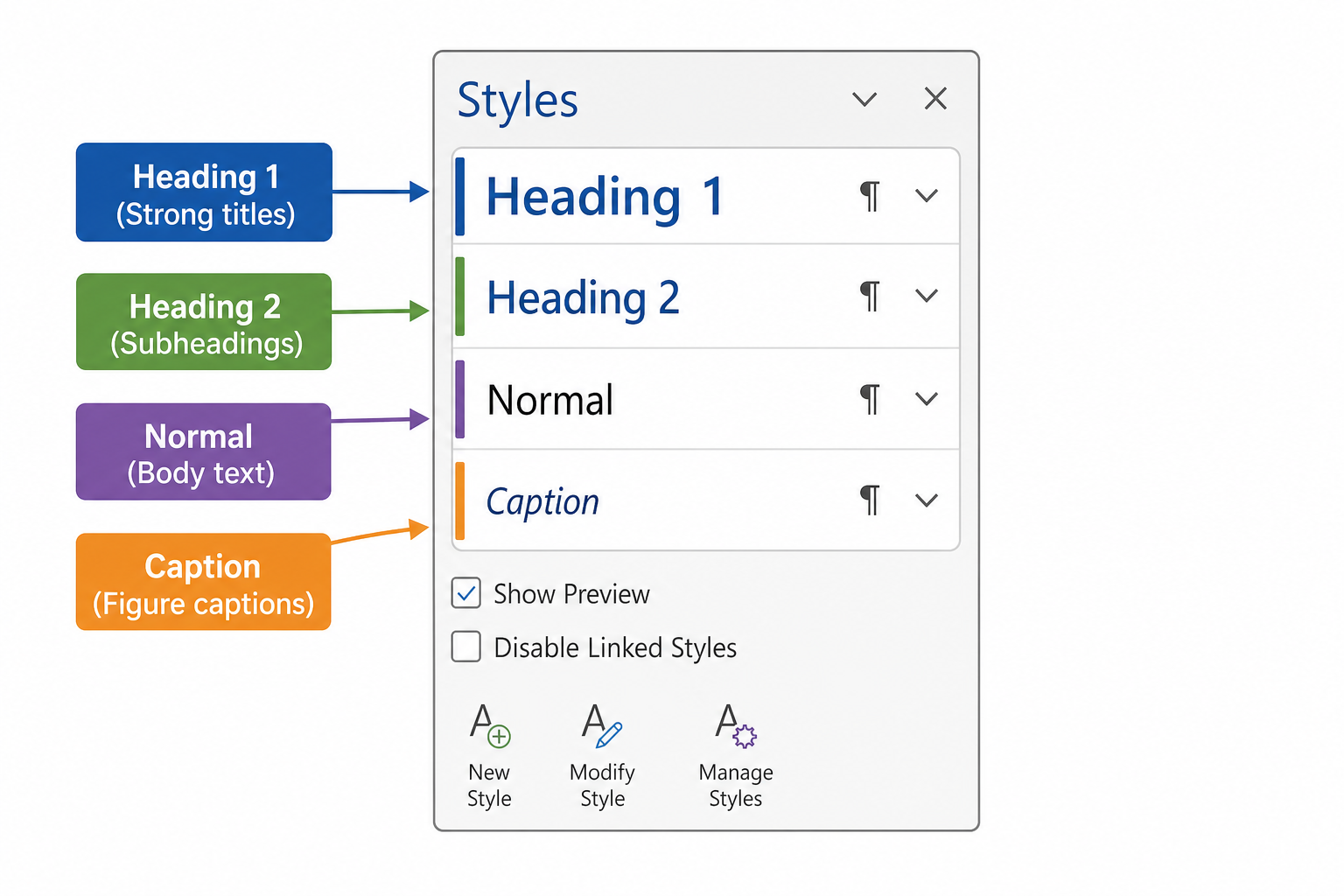
A Word style is a saved collection of formatting instructions — font, size, colour, spacing, indentation, and more — stored under a single name. Apply the style named “Heading 2” and Word instantly formats that paragraph with every setting you’ve defined, no manual tweaking required. According to Microsoft’s official Word documentation, styles can be customised or created from scratch, giving you full control over every element of your document’s appearance.
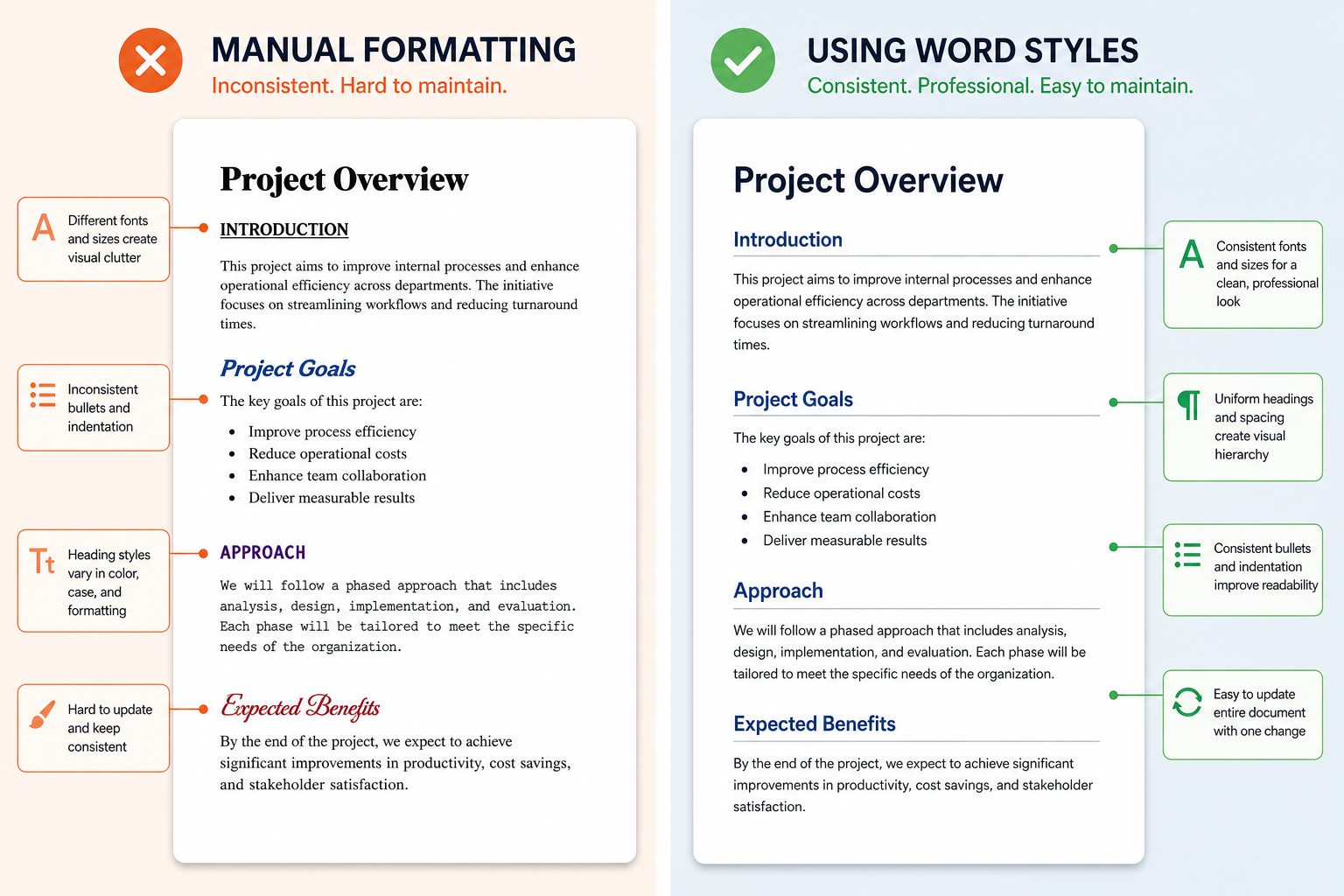
The real power shows up at scale. When you decide to change your body font from Calibri to Georgia across a 60-page document, updating the single “Normal” style reflows every paragraph in seconds. Do that with manual formatting and you’ll be there all afternoon.
The Built-In Style Gallery: Your Starting Point
Word ships with a ready-made set of document styles that covers most needs. You’ll find them in the Home tab under the Styles group. The most important built-in styles to know are:
- Normal — the default paragraph style; almost every other style inherits from it.
- Heading 1 – Heading 9 — hierarchical heading levels that also power the Navigation pane and automatic Table of Contents.
- Title and Subtitle — for cover pages and document openers.
- List Paragraph — keeps bulleted and numbered lists consistent.
- Quote / Intense Quote — pre-formatted for block quotations.
- Caption — for figures, tables, and images.
Starting from these built-in styles rather than building from scratch is almost always the faster choice — especially since Heading styles automatically populate the Navigation pane and let Word generate a Table of Contents with a single click.
How to Create a Custom Word Style from Scratch
Creating a new document style in Word takes less than two minutes. Here’s the fastest method:
- Format a paragraph exactly as you want it — choose the font, set the size, adjust spacing and indentation.
- With the cursor inside that paragraph, open the Styles pane (Home → Styles group → small arrow in the bottom-right corner).
- Click New Style (the first icon at the bottom of the pane).
- Give the style a clear, descriptive name — e.g., “Sidebar Text” or “Figure Caption Large”.
- Set Style type (Paragraph, Character, Table, or List) and choose which style it’s based on.
- Tick Add to the Styles gallery so it’s always one click away.
- If you want this style to appear in new documents, select New documents based on this template, then click OK.
That’s it. Your custom style is now available across the entire document and, if you chose the template option, in every new document you create going forward.
Modifying Existing Document Styles Word Already Knows
You don’t have to live with Word’s default fonts and spacing. Modifying an existing Word style template is just as straightforward:
- In the Styles gallery on the Home tab, right-click the style you want to change.
- Select Modify.
- In the Modify Style dialog, adjust font, size, colour, alignment, line spacing, or indentation using the controls shown — or click Format at the bottom for deeper options like paragraph rules, tabs, and borders.
- Choose All documents based on this template if you want every new document to inherit the change, or Only in this document to keep it local.
- Click OK. Every paragraph already using that style updates instantly throughout the document.
This instant document-wide update is the killer feature. Change your Heading 1 font once; every chapter title in your 200-page manual refreshes automatically.
Character Styles vs. Paragraph Styles: Knowing the Difference
Not all Word styles work the same way. Understanding the two main types prevents a lot of confusion:
- Paragraph styles apply to an entire paragraph — they control font, spacing, indentation, alignment, and borders. Most styles you’ll create fall into this category.
- Character styles apply only to selected text within a paragraph, overriding just the font-level settings (typeface, size, colour, bold, italic). Use them for things like “emphasis” or “code inline” where you only want part of a line formatted differently.
A well-structured document uses paragraph styles for structure and character styles sparingly for inline highlights. Mixing the two intelligently keeps your document styles Word-clean and easy to maintain.
Using Styles for Long Documents: Chapters, Reports, and Theses

Word formatting styles become genuinely essential once your document grows beyond about 20 pages. Here’s how to put them to work in multi-chapter projects:
Build a Table of Contents Automatically
Apply Heading 1, Heading 2, and Heading 3 styles consistently throughout your document, then go to References → Table of Contents → Automatic Table 1. Word reads every heading style and builds a linked, page-numbered TOC in seconds — and updates it with one click whenever content shifts.
Use the Navigation Pane to Jump Between Sections
With heading styles applied, pressing Ctrl + F and clicking the Headings tab in the Navigation pane gives you a live outline of the entire document. Click any heading to jump straight there — a huge productivity boost in documents with dozens of sections.
Apply Outline Levels for Master Documents
If you’re managing a very large project split across multiple files, Word’s Master Document feature uses the heading hierarchy built by your styles to stitch sub-documents together. Getting document styles Word-ready from day one means master documents “just work” without painful reformatting later.
How to Share Word Style Templates Across a Team
Consistent formatting across a team is one of the most common pain points in collaborative writing. Word style templates solve it — but you need to share them correctly.
Save Your Styles as a .dotx Template
Once your styles are exactly right in one document, save it as a Word Template: File → Save As → Word Template (*.dotx). This file contains all your custom styles, page layout settings, and default fonts. Anyone on your team who creates a new document from this template inherits every style automatically.
Distribute the Template File
Place the .dotx file in a shared network folder or a SharePoint/OneDrive location your team can access. In Word, go to File → Options → Advanced → File Locations and set the Workgroup Templates path to that shared folder. The template will then appear in every team member’s New Document dialog under “Personal” or “Workgroup” templates.
Copy Styles Between Documents with the Organizer
Already have a document with the right styles but no template file? Use Word’s Organizer to copy styles between files. Go to Home → Styles pane → Manage Styles → Import/Export. The Organizer opens two side-by-side panels — copy any style from one document (or template) to another in a few clicks, no reformatting required.
Lock Styles to Prevent Accidental Overrides
In team environments, individual contributors often paste in text with its own formatting, breaking consistency. To prevent this, go to Review → Restrict Editing, enable Limit formatting to a selection of styles, and choose exactly which styles are allowed. This stops anyone from applying ad-hoc manual formatting that fights your Word style templates.
Common Word Styles Mistakes (and How to Fix Them)
- Using manual formatting instead of styles — if you’re pressing Ctrl+B and changing font sizes directly, you’re creating a maintenance nightmare. Select that text, create a style from it, then use the style consistently.
- Forgetting to update “Normal” first — since most styles inherit from Normal, updating that one style (font, line spacing, paragraph spacing) cascades through the entire document instantly.
- Pasting text with “Keep Source Formatting” — this imports foreign styles that pollute your style list. Instead, use Paste Special → Keep Text Only (Ctrl+Shift+V) and then apply the correct local style.
- Over-creating styles — more than 15–20 custom styles in a single document is usually a sign you need to consolidate. Aim for a minimal, purposeful set that covers every use case without overlapping.
Word Formatting Styles in Word 2021 and Word 2024
The Styles system has been refined continuously, but the core workflow described in this guide works identically across Word 2016, Word 2019, Word 2021, and Word 2024. If you’re on an older version and finding the Styles pane cumbersome, upgrading to a modern perpetual licence is genuinely worth it — the latest releases include a cleaner Styles gallery, better theme integration, and improved paste-formatting controls.
ShopKeyOnline offers Microsoft Office 2021 Professional Plus from €28.95 and Microsoft Office 2024 Pro Plus from €24.50 — both delivered instantly by email with full activation support. Either version gives you the complete, up-to-date Styles toolkit described throughout this guide.
Frequently Asked Questions
What is the difference between a Word style and a Word template?
A style is a single named set of formatting rules — font, spacing, colour — applied to one paragraph or text selection. A template (.dotx file) is a document blueprint that bundles together a collection of styles, page layout settings, and default content. Templates deliver styles to new documents; styles do the actual formatting work within those documents.
Can I use my custom document styles Word created in other Office apps?
Paragraph and character styles are specific to Word. However, if you export a Word document to PDF or share it via OneDrive or SharePoint, the visual formatting is preserved. PowerPoint has its own Slide Master system, and Excel uses Cell Styles — neither imports Word styles directly.
Why do my Word styles disappear when I send a document to a colleague?
Styles are embedded inside the document file (.docx), so they should travel with it. What often happens is that a colleague opens the file and pastes new content using “Keep Source Formatting,” which can import conflicting styles. The fix is to use Restrict Editing to lock styles, or to ask collaborators to always paste as plain text and reapply local styles.
How do I reset a style back to Word’s default settings?
Right-click the style in the gallery, choose Modify, then click Format → Reset to Defaults (or simply delete your custom overrides and match the documented defaults). Alternatively, open the Manage Styles dialog, select the style, and click Reset to Default Paragraph Style — this restores Microsoft’s original formatting in one click.
Do Word style templates work in Word Online (Microsoft 365 browser version)?
Word Online supports applying and creating basic styles, but the full Styles Organizer and Restrict Editing controls require the desktop application. For team template management, always finalise and distribute your .dotx files from the desktop version of Word, then allow team members to use those styles in Word Online for day-to-day editing.
