

Office ai plugins are third-party add-ins that connect Word, Excel and PowerPoint to an AI model of your choice — Claude, Grok, Gemini, or a custom API — instead of locking you into Microsoft’s built-in Copilot. They install like any other Office add-in, run inside the task pane you already know, and send your prompts to whichever model you’ve configured. If you’ve ever wanted a different AI writing style in Word or a specific model for financial modelling in Excel, this is the category that makes it possible.
For years, adding AI to Office meant accepting whatever Microsoft shipped. That’s changed. A growing ecosystem of add-ins now lets small businesses, freelancers, students and office admins choose the AI engine behind their documents and spreadsheets — often at a lower cost than a full Copilot subscription, and sometimes for free.
What Are Office AI Plugins, Exactly?
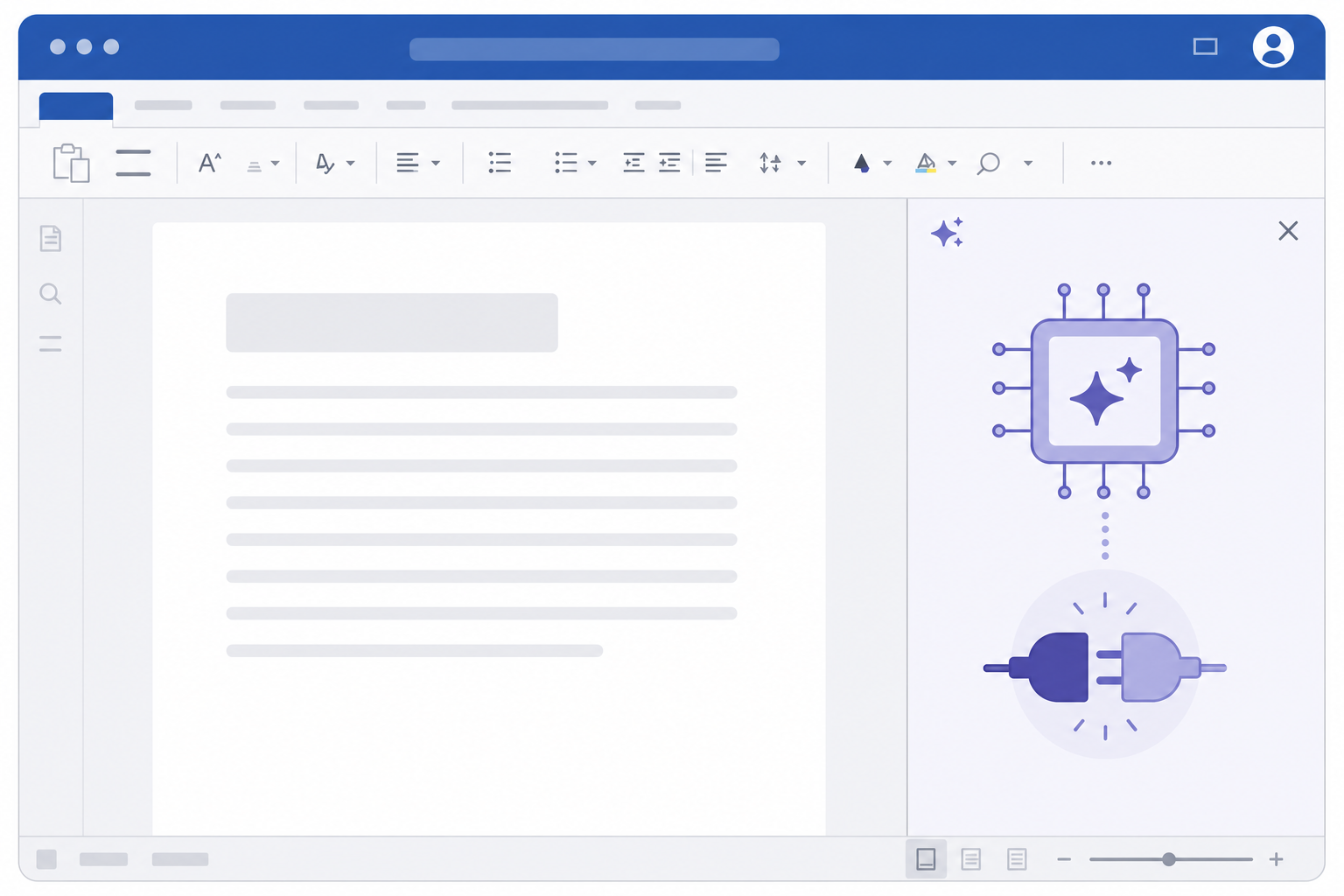
Office plugins are add-ins built on Microsoft’s official Office Add-ins platform — the same web-based framework (HTML, CSS and JavaScript) that powers every task-pane add-in in the Microsoft Store. Instead of being written by Microsoft, they’re built by third parties who wire the add-in’s interface to an external AI provider’s API.
In practice, this means:
-
You install the add-in from the Microsoft AppSource store or via a sideloaded manifest file.
-
The add-in opens a task pane inside Word, Excel or PowerPoint, just like Copilot’s pane does.
-
You enter or connect an API key for the model you want to use (OpenAI, Anthropic’s Claude, Google’s Gemini, xAI’s Grok, or a custom/local model).
-
Prompts and document content are sent to that model, and the response is inserted or applied directly in your file.
Because these add-ins sit on Microsoft’s public Office Add-ins platform, they follow the same security sandboxing and permission model as any other add-in — they don’t require hacking or unofficial builds of Office itself.
Why Use Third-Party Office AI Plugins Instead of Copilot?
The short answer: choice and cost control. Copilot is bundled into certain Microsoft 365 plans and works well for general tasks, but it locks you into one model family and one pricing tier. Office plugins let you pick the model that fits the job and pay only for what you use.
Model Choice Matches the Task
Different AI models have different strengths. A model tuned for long-form reasoning might outperform another on legal or technical writing in Word, while a model optimised for structured data can be more reliable for formula generation and analysis in Excel. Plugging in the model you trust for a specific task — rather than a single generalist assistant — is the core appeal.
Cost Flexibility
Many third-party plugins use pay-as-you-go API pricing or free tiers, which can be cheaper than an added Copilot subscription, especially for occasional users, students, or small teams who don’t need AI running in every document all day.
Data and Vendor Preference
Some businesses already have contracts, compliance requirements, or simply a preference for a specific AI vendor. Office ai plugins let that choice extend into daily document work without waiting for Microsoft to add native support.
Setting Up Office Plugins for AI in Word, Excel and PowerPoint

Getting an office ai plugin running takes a few structured steps, and the process is broadly the same across Word, Excel and PowerPoint.
1. Confirm Your Office Version Supports Add-ins
Add-ins require a modern, activated copy of Office — 2019 or later, or Microsoft 365 — since the Office Add-ins platform relies on APIs not present in very old builds. If you’re still running an outdated or unlicensed copy, it’s worth sorting out activation first; a properly licensed Microsoft Office 2024 Pro Plus for Windows installation gives you the full add-in support needed for this kind of tooling.
2. Install the Add-in
-
Open Word, Excel or PowerPoint and go to Insert > Get Add-ins (or Add-ins in the ribbon).
-
Search AppSource for the plugin by name, or choose “Upload My Add-in” if you have a manifest file from the vendor.
-
Follow the prompt to add it — it will appear as a new icon in the ribbon or as a task pane option.
3. Connect Your AI Model
Most plugins ask you to sign in or paste an API key from your chosen AI provider on first launch. Keep this key private — treat it the same way you’d treat a software licence key or a password, since anyone with it can use your account’s AI credits.
4. Test With a Low-Risk Document
Before relying on a new plugin for client work, test it on a throwaway document. Check how it handles formatting, whether it can read existing content, and how it inserts AI-generated text or formulas back into the file.
Practical Use Cases for Office AI Plugins
The value of ai plugins becomes clearest when you look at specific, everyday tasks rather than abstract features.
Word: Drafting and Editing
-
Rewriting a report in a specific tone or reading level
-
Summarising long contracts or meeting notes into bullet points
-
Generating first drafts of proposals, cover letters, or policy documents
Excel: Formulas and Analysis
-
Turning a plain-language request (“show me monthly totals by region”) into a working formula
-
Explaining what an unfamiliar formula in an inherited spreadsheet actually does
-
Spotting anomalies or trends across large datasets without manual pivoting
PowerPoint: Content and Design
-
Generating a first-draft outline from a Word document or bullet list
-
Rewriting slide text to fit a shorter format
-
Suggesting speaker notes based on slide content
Freelancers and small business owners often find the biggest time savings in first-draft generation, while office admins lean on plugins for repetitive formatting and summarisation work. Students commonly use them for outlining and proofreading, provided the institution’s AI-use policy allows it.
Security and Data Considerations Before You Install
Any office ai plugin that reads or edits your documents is, by definition, handling your data — so it’s worth pausing before granting broad permissions. Check three things before rolling a plugin out across a team: what data it sends to the external model, whether that provider retains or trains on your content, and whether the add-in comes from a verified publisher on AppSource rather than an unverified sideload.
For sensitive business documents — financial models, HR records, legal drafts — confirm the AI provider’s data-handling terms match your compliance needs before connecting a plugin. This is especially relevant for regulated industries where document content can’t leave certain jurisdictions or systems.
Other Office AI Plugins vs Built-In Copilot: Quick Comparison
Neither approach is universally better — the right choice depends on your workflow and budget.
-
Built-in Copilot: Deeply integrated, consistent experience across the whole Microsoft 365 suite, single subscription, one model family.
-
Third-party ai plugins: Model choice and flexibility, often lower or usage-based cost, but requires managing API keys and vetting individual add-ins yourself.
Many users end up running both — Copilot for everyday tasks bundled into their subscription, and a specific office ai plugin for a task where a different model performs better.
Getting the Most Out of Office AI Plugins
Office ai plugins only work well on top of a stable, correctly licensed Office installation. If your copy of Office is outdated, unlicensed, or missing updates, add-ins can behave unpredictably or fail to load at all. Make sure your core software is in order first: for example, an Office 2021 Professional Plus retail key or the newer Office 2024 suite both fully support the modern Add-ins platform used by these tools.
Once your Office installation is solid, plugin management is mostly routine housekeeping: review installed add-ins periodically, remove ones you no longer use, and keep API keys rotated the same way you’d manage any other credential.
FAQ
How do I download office ai plugins for Word or Excel?
Open Word, Excel or PowerPoint, go to Insert > Get Add-ins, and search the AppSource store by the plugin’s name. If the developer provides a manifest file directly instead of listing on AppSource, use the “Upload My Add-in” option to sideload it.
How do I install an office ai plugin once it’s downloaded?
Installation happens automatically when you add it through Insert > Get Add-ins — Office handles the setup and adds an icon or task pane entry to your ribbon. For sideloaded add-ins, you upload the manifest file and Office registers it the same way.
How do I activate an office ai plugin with my AI model?
After installing, open the plugin’s task pane and look for a sign-in or API key prompt. Paste the API key from your AI provider’s dashboard (OpenAI, Anthropic, Google, or another vendor), and the plugin will authenticate and start routing requests to that model.
Do office ai plugins work with older versions of Office?
Most modern add-ins require Office 2019 or later, or a Microsoft 365 subscription, since they depend on APIs introduced in more recent builds. Very old versions of Office may not support the Add-ins platform at all.
Are office ai plugins safe to use with sensitive documents?
It depends on the plugin and the AI provider behind it. Always check the provider’s data retention policy and whether the add-in is a verified AppSource listing before using it with confidential or regulated documents.
Can I use more than one office ai plugin at a time?
Yes. Office allows multiple add-ins to be installed simultaneously, so you can run one plugin for drafting in Word and a different one for data analysis in Excel without conflict.
