
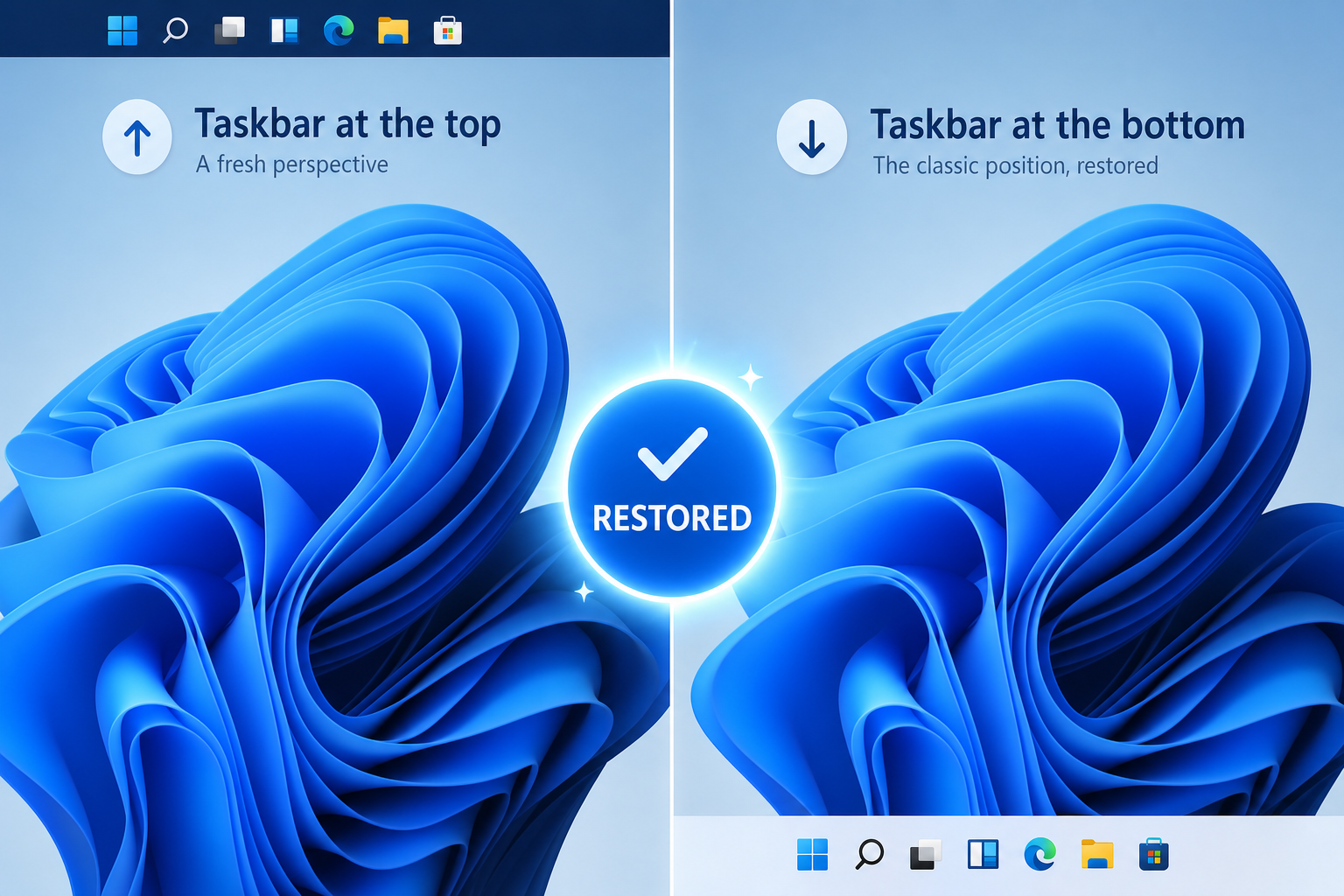
Windows 11 feature restoration is finally real — after nearly five years of user complaints, Microsoft has used its latest patch cycle to reverse several of the most unpopular design decisions introduced at launch. The August 2026 optional update, delivered via KB5120998, brought back a movable taskbar, a resizable Start menu, and a Bing-free local search experience. If you have been holding off on upgrading from Windows 10, or you already run Windows 11 but feel limited by its rigid interface, these changes deserve your full attention.
Why Microsoft Changed Course on Windows 11 UI Decisions

When Windows 11 launched in October 2021, power users were vocal about what they lost. The taskbar was locked to the bottom of the screen with no way to move it. The Start menu shrank to a simplified grid, dropping live tiles without providing an equivalent. The right-click context menu was slimmed down, hiding the full list of options behind a secondary click. And Windows Search persistently surfaced Bing web results even when users just wanted to find a local file.
Microsoft collected feedback through its Windows Insider programme and the Feedback Hub, and the data was clear: these were not niche complaints. According to Windows Latest, KB5120998 directly addresses the three most-requested features from Windows 11’s entire lifecycle. The Windows 11 UI update marks one of the most significant rounds of user-driven reversals Microsoft has made to a modern OS release.
The Three Big Windows 11 Restored Features in KB5120998
The August 2026 optional update delivers three headline changes. Each one fixes a complaint that has been open since the day Windows 11 shipped.
1. A Movable Taskbar — Finally
Windows 11’s taskbar was hardcoded to the bottom edge of the screen from launch. Registry hacks existed, but they broke with every major update. KB5120998 introduces a native option to move the taskbar to the top, left, or right side of the display — restoring parity with what Windows 10 offered for years. For ultrawide monitor users and those who prefer a vertical taskbar to maximise vertical workspace, this Windows 11 taskbar update is a genuine quality-of-life improvement, not a cosmetic one.
2. A Resizable Start Menu
The Windows 11 Start menu launched at a fixed size with no way to compact it. Power users who preferred a lean launcher had no official option. KB5120998 adds Large, Small, and Automatic sizing options, and a later September 2026 update (KB5124008) added the ability to hide unwanted sections entirely. You can now configure the Start menu to feel closer to the lean Windows 10 layout or keep the expanded Copilot+ style — your choice.
3. Bing-Free Local Search
Perhaps the most universally loathed change in Windows 11 was Search returning Bing web results when a user typed a local application name or file path. The Windows 11 UI update in KB5120998 introduces a toggle to disable web results from Windows Search entirely, so the Search bar behaves as a fast local launcher — exactly what the vast majority of users actually want from it.
The Redesigned Context Menu: A Longer Road Back

The right-click context menu has followed a slower path. Windows 11 introduced a condensed two-tier menu — you had to click “Show more options” to access the full legacy list. This frustrated anyone whose workflow depended on third-party shell extensions (7-Zip, Git, image editors) that appear in the extended menu.
Microsoft has been testing a redesigned context menu that is both faster and more customisable, addressing complaints about lag as well as the missing options. According to reporting from Windows Central, the new compact menu is engineered for improved performance and will support user customisation. The rollout is gradual, so not all users on the same patch level will see it simultaneously — but it is coming as part of the broader Windows 11 restored features push.
In the meantime, users who need the full context menu immediately can press Shift + right-click to open the classic menu without editing the registry.
Windows 11 Taskbar Update: What Else Changed
Beyond the three flagship features in KB5120998, the broader 2026 patch wave has improved the taskbar in other meaningful ways:
- Taskbar icon resizing — users can now choose between compact and standard icon sizes, useful on high-DPI screens.
- Better overflow handling — the system tray icon overflow area has been redesigned so icons are more accessible and less likely to disappear behind the “^” button.
- Search bar flexibility — the Search box on the taskbar can be hidden, shown as an icon only, or expanded into a full bar depending on your preference.
- Start menu section toggles — in the September follow-up update KB5124008, each section of the Start menu (Pinned, Recommended, All Apps) can be individually shown or hidden.
- Top-of-screen taskbar auto-hide — when the taskbar is moved to the top, auto-hide works as expected, giving full-screen applications an uninterrupted canvas.
How to Enable Windows 11 Restored Features Right Now

The features in KB5120998 are rolling out gradually via the optional update channel. If you want them today rather than waiting for automatic delivery, here is what to do:
- Open Settings → Windows Update and click Check for updates.
- Look for KB5120998 listed under Optional updates available and click Download & install.
- After rebooting, go to Settings → Personalisation → Taskbar to see the new positioning and sizing controls.
- For the resizable Start menu, navigate to Settings → Personalisation → Start and choose your preferred layout size.
- To disable web results in Search, go to Settings → Privacy & security → Search permissions and toggle off Show search highlights and web results.
Note: some features may still require enabling via ViVeTool if they have not yet been fully switched on for your build. Microsoft’s staged rollout means features arrive in waves — typically Insider Preview builds first, then Canary and Beta channels, then the Release Preview ring, and finally the broad release population.
What This Windows 11 UI Update Means for Your Workflow
These are not minor visual tweaks. The Windows 11 feature restoration addresses the core reasons many power users refused to upgrade from Windows 10 — or immediately reverted after trying Windows 11. A movable taskbar, a compact Start menu, and a Search that does not push Bing at you are table-stakes features for a productivity-focused OS.
For IT administrators managing fleets of machines, the Start menu section toggles reduce the need for custom Group Policy scripts to suppress the Recommended section that previously surfaced unwanted content for managed environments. For creative professionals, being able to position the taskbar vertically frees up vertical screen real estate on widescreen setups — especially relevant when working in video editors, IDEs, or CAD applications.
If your team has been on Windows 10 specifically to avoid these limitations, now is a sensible time to revisit the upgrade path. Windows 10’s mainstream end-of-support date has passed, and the security case for moving to Windows 11 is strong. You can get a genuine Windows 11 Pro licence from Shop Key Online from just €15.95, with instant email delivery and lifetime activation support included.
Should You Upgrade to Windows 11 Now?
If you were waiting for Microsoft to restore the flexibility Windows 10 offered, the argument for upgrading has never been stronger. The Windows 11 taskbar update and Start menu changes mean the UI is genuinely more configurable than it has been at any point since launch. Pair that with Windows 11’s security improvements — mandatory TPM 2.0, Secure Boot, hardware-backed credential isolation — and the productivity gains from Copilot integration, and the upgrade case is compelling.
For home users, the Windows 11 Home OEM licence starts from €9.80 at Shop Key Online, making the cost of getting onto a supported, fully featured OS remarkably low. All keys are 100% genuine, activate directly with Microsoft’s servers, and come with the store’s lifetime customer support at no extra charge.
Whether you are upgrading a single machine or rolling out across a team, the combination of improved UI flexibility and a robust security baseline makes Windows 11 in its current state a very different proposition from the constrained release that shipped in 2021.
Frequently Asked Questions
What is Windows 11 feature restoration?
Windows 11 feature restoration refers to Microsoft’s recent patch updates — most notably KB5120998 — that bring back popular UI elements removed or locked down when Windows 11 launched in 2021. These include a movable taskbar, a resizable Start menu, and the ability to disable Bing web results in Windows Search.
How do I get the movable taskbar in Windows 11?
Install the optional update KB5120998 via Settings → Windows Update. Once installed, go to Settings → Personalisation → Taskbar, where you will find native controls to position the taskbar at the top, left, or right of your screen. No third-party tools or registry edits are needed.
Can I get the classic right-click context menu back in Windows 11?
Yes. You can press Shift + right-click in File Explorer to immediately open the full classic context menu without any settings change. Microsoft is also rolling out a redesigned context menu with faster performance and greater customisation as part of the broader Windows 11 UI update cycle.
Does Windows 11 feature restoration require a fresh install?
No. The restored features are delivered through Windows Update as optional or cumulative updates, so your existing Windows 11 installation receives them automatically once you install the relevant patch. No reinstall or clean setup is needed.
Is it worth upgrading to Windows 11 now that features have been restored?
For most users, yes. The Windows 11 UI update cycle has addressed the main complaints from 2021 — flexible taskbar positioning, compact Start menu sizing, and Bing-free Search. Combined with Windows 11’s security advantages (TPM 2.0, Secure Boot, hardware credential isolation), the case for upgrading from Windows 10 is now much stronger than it has been at any point in Windows 11’s lifecycle.
Where can I buy a genuine Windows 11 licence?
Shop Key Online sells 100% genuine Windows 11 Home and Pro licences at competitive prices, with instant email delivery and lifetime activation support. OEM licences start from €9.80 for Home and €15.95 for Pro. All keys activate directly with Microsoft’s servers and are backed by a full money-back guarantee if activation fails.
