
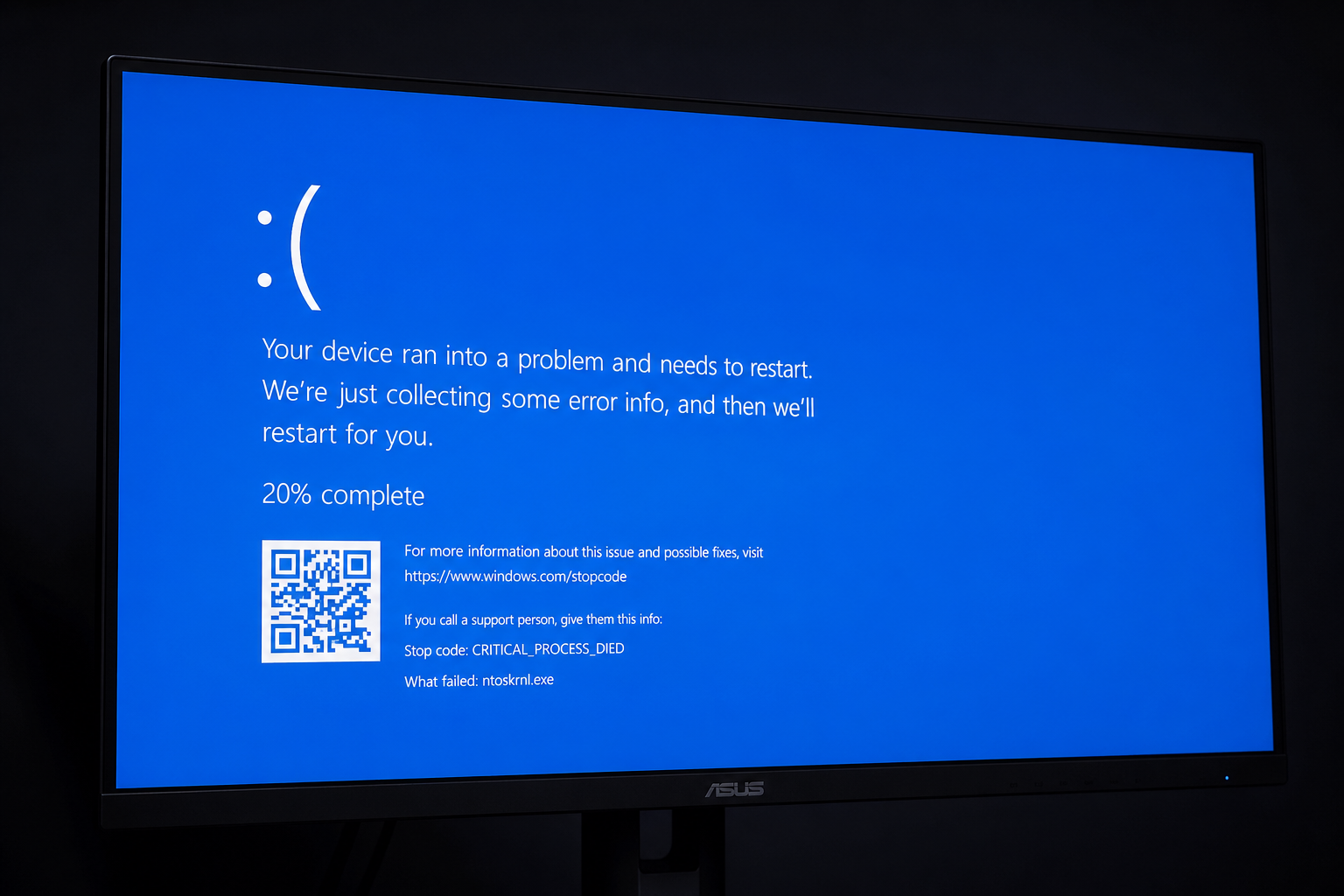
A BSOD error code appearing on your screen is Windows doing you a favour — it’s halting everything before a bad situation becomes a catastrophic one. The blue screen itself is jarring, but the stop code printed on it is a direct clue pointing to exactly what went wrong. This guide decodes the most common blue screen codes, explains the root causes behind each one, and walks you through the fastest, safest fixes so you spend less time staring at a crash screen and more time actually using your PC.
What Are BSOD Error Codes and Why Does Windows Show Them?
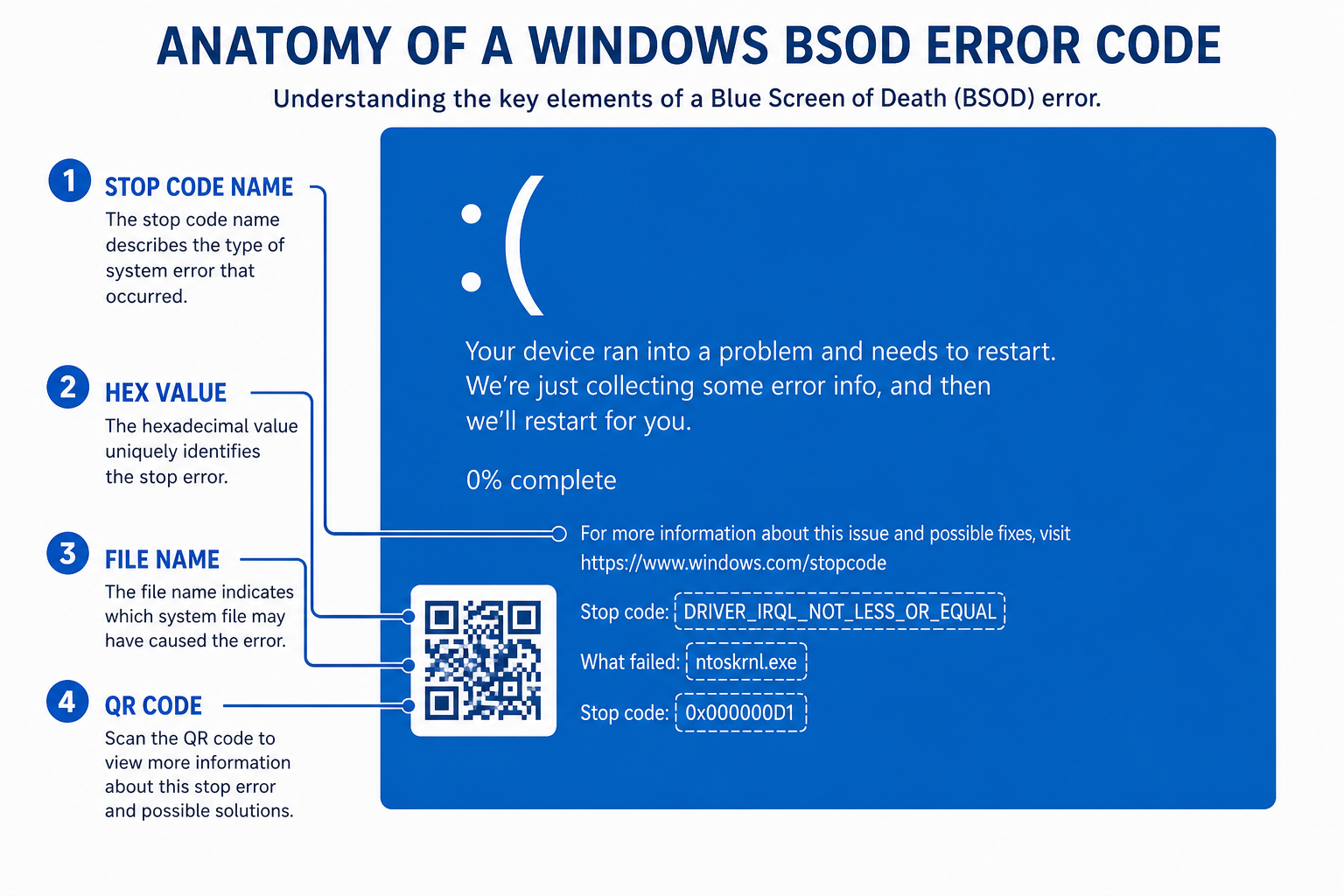
Windows stop codes — officially called bug checks — are triggered whenever the operating system detects a condition so severe it cannot safely continue running. Rather than risk data corruption, Windows forces an immediate halt and displays a stop code on the blue screen. Every crash error code maps to a specific internal failure condition, recorded in a minidump file stored at C:\Windows\Minidump for later analysis.
Since Windows 10, Microsoft simplified the crash screen to show a plain-English stop code name alongside the hexadecimal value. That name is your starting point for every diagnosis.
- The stop code name (e.g.
MEMORY_MANAGEMENT) tells you the failure category. - The hex value (e.g.
0x0000001A) maps to the same category in Microsoft’s official bug check reference. - The minidump file captures the exact thread and module that caused the crash.
- Event Viewer logs the crash under Windows Logs > System with additional context.
Understanding these four data points together gives you a precise diagnosis rather than a guessing game.
How to Read a Blue Screen Code Before You Start Fixing
Before diving into individual blue screen codes, establish a simple reading routine every time a crash occurs:
- Write down or photograph the stop code name shown at the bottom of the blue screen — for example,
DRIVER_IRQL_NOT_LESS_OR_EQUAL. - Note any filenames listed below the code (e.g.
ntfs.sys,nvlddmkm.sys) — these point directly to the guilty driver or module. - Open Event Viewer after reboot (search “Event Viewer” in Start, go to Windows Logs > System) and look for Critical-level entries near the crash time. Our guide on Windows Event Viewer log optimisation explains which log entries actually matter and how to filter out the noise.
- Check the minidump at
C:\Windows\Minidumpusing a tool like WinDbg or the free WhoCrashed utility for a plain-English crash summary.
With these in hand, the crash error code transforms from a scary wall of text into a manageable checklist.
DRIVER_IRQL_NOT_LESS_OR_EQUAL: BSOD Error Codes Starting Here
This is one of the most common Windows stop codes, and it almost always points to a faulty or outdated driver. The name describes exactly what happened: a device driver attempted to access a memory address while running at an elevated interrupt request level (IRQL), which is forbidden. The kernel catches the violation and pulls the emergency brake.
Common Causes
- A recently installed or updated driver (GPU, network adapter, USB controller) that contains a bug.
- Corrupted driver files caused by an interrupted Windows Update.
- Third-party antivirus drivers — particularly those that hook deep into the kernel.
- Faulty RAM causing bad data to be passed to a driver routine.
Fastest Fix Path
- Note the filename shown on the crash screen (e.g.
tcpip.sys= network driver,nvlddmkm.sys= NVIDIA GPU driver). - Boot into Safe Mode (Settings > System > Recovery > Advanced startup) and uninstall or roll back the named driver via Device Manager.
- Download the latest driver version directly from the hardware manufacturer’s website and reinstall clean using DDU (Display Driver Uninstaller) for GPU drivers.
- Run
sfc /scannowin an elevated Command Prompt to repair any corrupted system files that may have been caught in the crossfire.
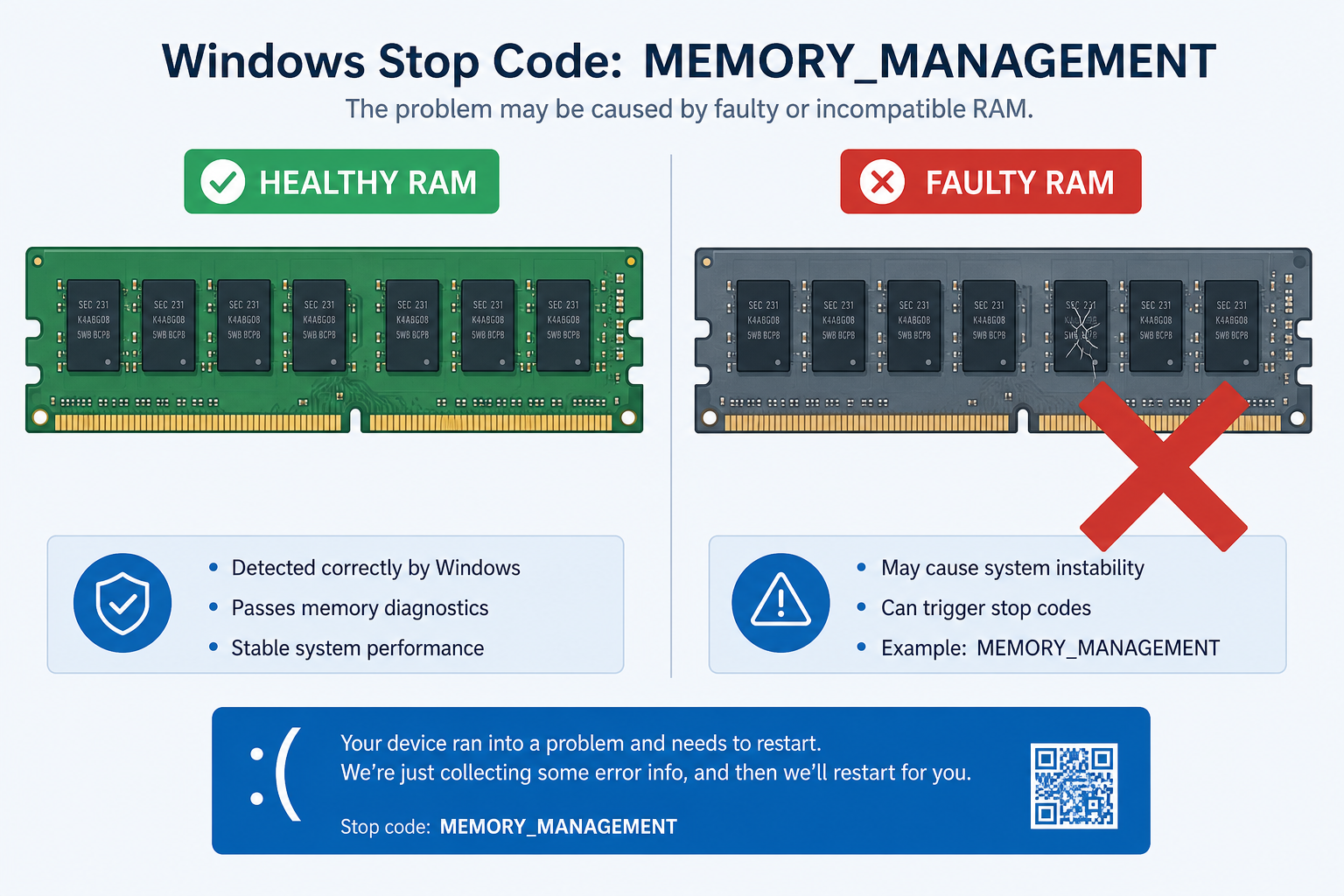
MEMORY_MANAGEMENT (Stop Code 0x0000001A)
The MEMORY_MANAGEMENT crash error code signals that Windows encountered a serious error in its memory manager — the kernel component responsible for allocating and tracking RAM usage. This is a broad BSOD error code that can stem from hardware or software, which is why systematic diagnosis matters.
Common Causes
- Physically faulty RAM — particularly sticks running at XMP/EXPO profiles above their rated stable speed.
- Corrupted Windows system files or a damaged page file.
- Failing SSD or HDD causing bad reads when virtual memory is used.
- Overclocking instability in the CPU or memory controller.
Fastest Fix Path
- Run Windows Memory Diagnostic: press Win + R, type
mdsched.exe, and choose restart now. Windows will test RAM across two passes and report errors on next boot. - For thorough testing, boot from a MemTest86 USB drive and run at least two full passes — any errors mean the RAM stick is defective and must be replaced.
- If RAM tests clean, run
chkdsk C: /f /rin an elevated Command Prompt to check for drive-level bad sectors contributing to the memory manager failures. - Reset the page file: go to System Properties > Advanced > Performance Settings > Advanced > Virtual Memory, set it to “System managed size”, and reboot.
- If you’re running XMP/EXPO, temporarily set RAM to its base JEDEC speed in BIOS to confirm stability before investigating further.
CRITICAL_PROCESS_DIED and Its Blue Screen Codes Explained
When you see this blue screen code, Windows is telling you that a system process marked as critical — one that must be running for Windows to function — has terminated unexpectedly. Common offenders include the Session Manager (smss.exe), Client Server Runtime (csrss.exe), and the Windows Logon process (winlogon.exe).
Common Causes
- Corrupted or missing Windows system files — often after a botched update or malware infection.
- Storage failure: if the drive hosting Windows degrades, critical processes can lose access to the files they depend on.
- A rootkit or advanced malware deliberately terminating system processes.
- Insufficient power delivery to the drive or CPU during high-load scenarios.
Fastest Fix Path
- Run the DISM repair stack in an elevated Command Prompt:
DISM /Online /Cleanup-Image /RestoreHealth, then follow withsfc /scannow. - Run
chkdsk C: /f /rto catch drive-level corruption that may be starving critical processes of their files. - Boot from Windows installation media and use Startup Repair if the machine can no longer boot reliably.
- Run a full offline malware scan using Windows Defender’s offline scan mode (Windows Security > Virus & threat protection > Scan options > Microsoft Defender Offline scan).
- If crashes persist, a clean Windows reinstall is the most reliable resolution — which is also a good opportunity to upgrade from a copy of Windows that’s running out of support life.
Other Common Windows Stop Codes Worth Knowing
Beyond the three above, several other crash error codes appear frequently in the wild:
- PAGE_FAULT_IN_NONPAGED_AREA (0x00000050) — A driver or system component tried to access a memory page that wasn’t loaded into RAM. Typically a driver bug or bad RAM; fix path mirrors DRIVER_IRQL above.
- SYSTEM_SERVICE_EXCEPTION (0x0000003B) — A low-level system service threw an unhandled exception. Most commonly caused by outdated antivirus drivers or a corrupted graphics driver.
- IRQL_NOT_LESS_OR_EQUAL (0x0000000A) — The older sibling of DRIVER_IRQL, this blue screen code usually indicates a driver or kernel module accessing invalid memory; the driver rollback approach applies here too.
- KERNEL_SECURITY_CHECK_FAILURE (0x00000139) — Windows detected that a kernel data structure was tampered with, often by corrupted drivers or malware attempting privilege escalation.
- WHEA_UNCORRECTABLE_ERROR (0x00000124) — A hardware-level error reported by the Windows Hardware Error Architecture, pointing to a failing CPU, RAM, or power supply issue. This one warrants hardware stress-testing with tools like Prime95 or HWiNFO64.
Universal Steps for Any BSOD Error Code
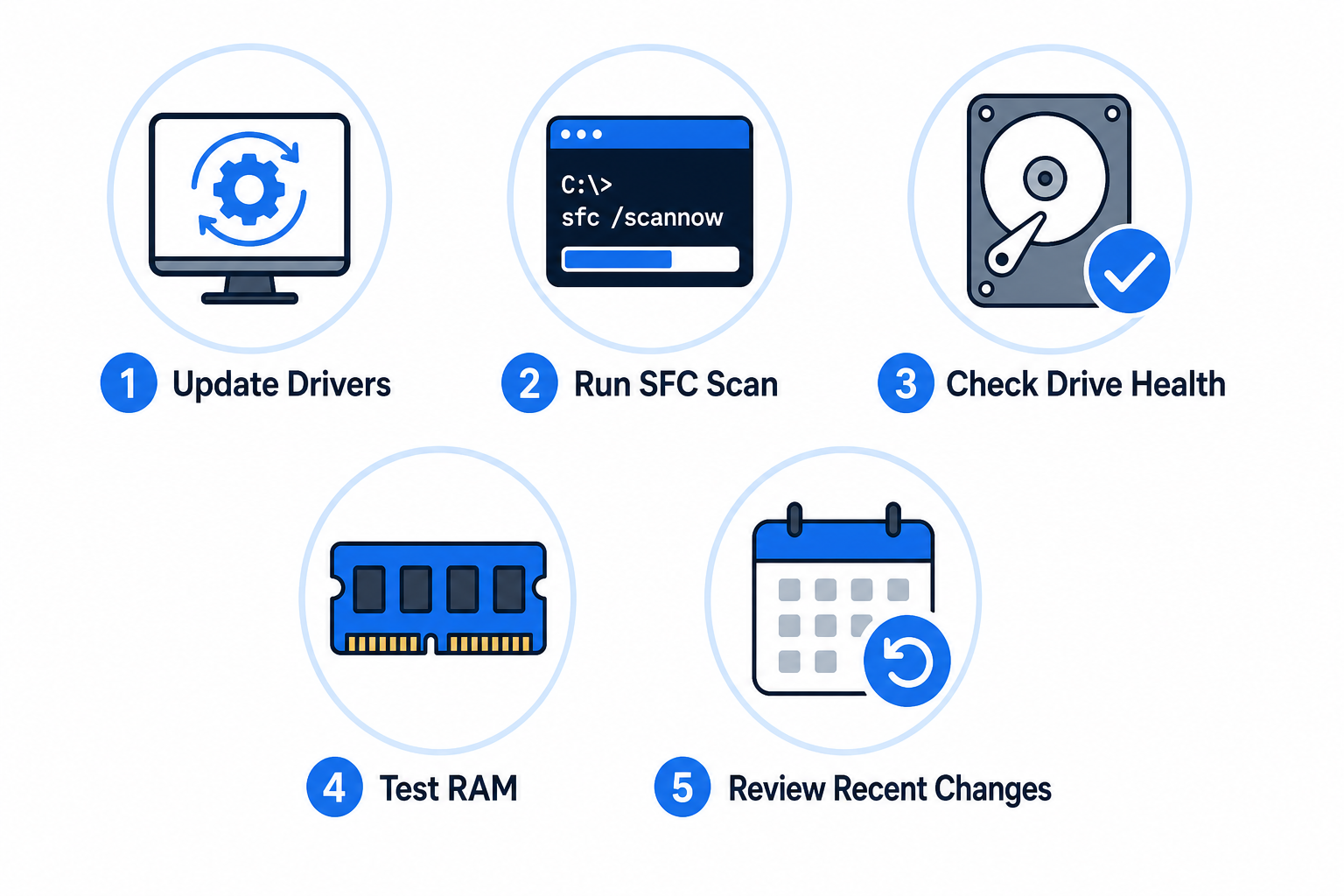
Regardless of which Windows stop code appears, this five-step framework applies across the board and catches the majority of crash causes:
- Update all drivers — Use Device Manager or manufacturer utilities (Intel Driver & Support Assistant, AMD Software, NVIDIA GeForce Experience) to ensure every driver is current.
- Run SFC and DISM — These built-in tools repair corrupted system files without touching personal data.
- Check your storage health — Use CrystalDiskInfo to read S.M.A.R.T. data from your drive. Reallocated sectors or pending errors are early warning signs of impending failure.
- Test RAM — Even one bad memory cell can produce a rotating carousel of different BSOD error codes that look unrelated.
- Review recent changes — New hardware, a Windows Update, or a newly installed application installed within 48–72 hours of the first crash is the prime suspect. Roll it back first.
For a deeper look at exactly which event log entries to correlate with each crash, the Windows Event Viewer optimisation guide is an essential companion to this article. And if you’re experiencing network-related crashes tied to driver failures, the Windows 11 DNS, TCP and driver fix guide covers the network stack in detail.
When Recurring Crash Error Codes Mean a Fresh Windows Install
Sometimes the accumulated damage — corrupted drivers, half-patched system files, malware remnants — goes too deep for repair tools to clean up. A clean reinstall of Windows is not a last resort; it is often the fastest path back to a stable machine when blue screen codes keep rotating despite your best efforts. Microsoft’s own Bug Check Code Reference documents every stop code in exhaustive detail if you want to dig deeper into the kernel mechanics behind a specific crash.
If you do decide on a fresh install — or if your Windows licence was tied to a machine you’re retiring — ShopKeyOnline carries genuine Microsoft Windows 11 Pro OEM keys from €15.95, delivered by email usually within minutes. It’s a clean start without the clean-slate price tag.
More broadly, the Windows Troubleshooting section of the ShopKeyOnline blog covers the full range of Windows stability and performance issues — bookmark it as your go-to reference whenever Windows misbehaves.
FAQ
How do I find my BSOD error code after a crash?
If you missed it on screen, open Event Viewer (search “Event Viewer” in Start), navigate to Windows Logs > System, and look for a Critical-level entry with source “BugCheck” near the time of the crash. The error code appears in the event details. Alternatively, open C:\Windows\Minidump and analyse the .dmp file with WinDbg or the free WhoCrashed tool for a plain-English summary.
Can a Windows stop code be caused by malware?
Yes. Rootkits and advanced malware frequently terminate critical system processes or corrupt kernel drivers, triggering blue screen codes such as CRITICAL_PROCESS_DIED or KERNEL_SECURITY_CHECK_FAILURE. Run Windows Defender’s offline scan mode — which operates before the OS fully loads — to catch threats that hide from a standard in-session scan.
Is it safe to keep using my PC after a single BSOD?
One isolated crash is not necessarily alarming — it can result from a single bad driver state that self-resolves on reboot. However, repeated or escalating crash error codes, especially those pointing to hardware (MEMORY_MANAGEMENT, WHEA_UNCORRECTABLE_ERROR), should be investigated promptly. Continuing to ignore them risks data loss if the underlying hardware is failing.
Do BSOD error codes differ between Windows 10 and Windows 11?
The underlying Windows stop codes and their hex values are identical between Windows 10 and Windows 11 — they share the same NT kernel. The visual presentation changed slightly (Windows 11 uses a more minimal layout with a QR code), but the stop code name and hex value you see on screen follow exactly the same Microsoft bug check reference for both versions.
What is the most common cause of recurring blue screen codes?
Across support forums and hardware diagnostic data, outdated or incompatible drivers — particularly GPU and network adapter drivers — are the single most common root cause of recurring BSOD error codes in Windows 10 and 11. Faulty RAM is a close second, especially when blue screen codes rotate between different stop code names with no obvious pattern, since a bad memory cell can corrupt any running process.
